Method 1: Using an online PDF editor
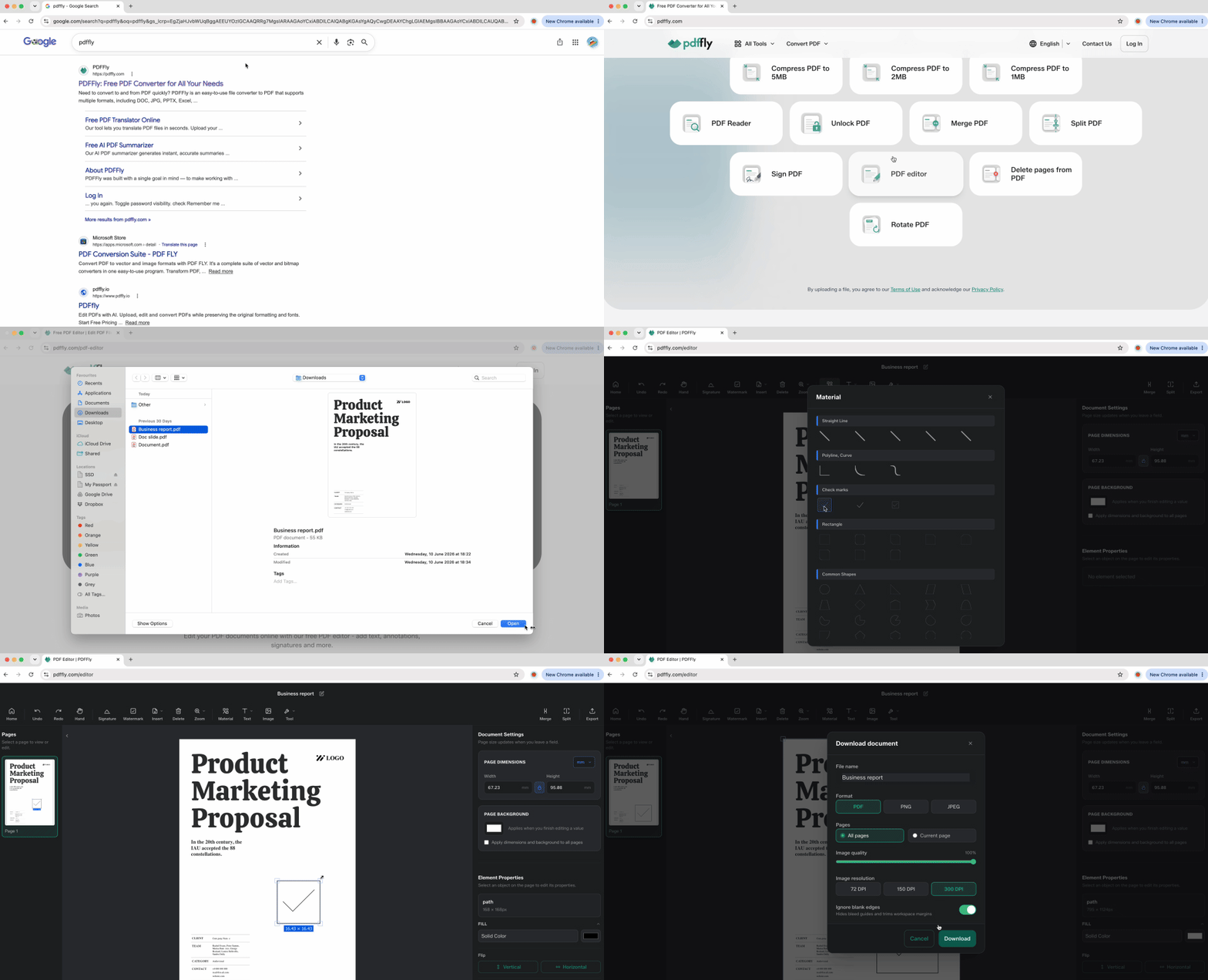
When dealing with scanned checklists or flat documents, browser-based editors give you total control. Online tools handle files that desktop readers can't touch, letting you place checkmarks anywhere with surgical precision.
- Open your browser and navigate to PDFFly.
- Upload the document from your device.
- Select the annotation or drawing tool from the editor toolbar.
- Choose the checkmark symbol from the shapes library, or use the pen tool to draw one manually.
- Click to place the mark directly over the checkbox area on your document.
- Resize or reposition until it aligns perfectly with the box.
- Download the updated file to your device.
This method shines for scanned paper forms where no other tool can add interactive elements. The browser-based approach works on any operating system — Windows, Mac, Linux, Chromebook — without installing software. Large batches of checkboxes become manageable when you can visually confirm each mark's placement before saving.
Method 2: Add a checkmark to a PDF for free using Unicode
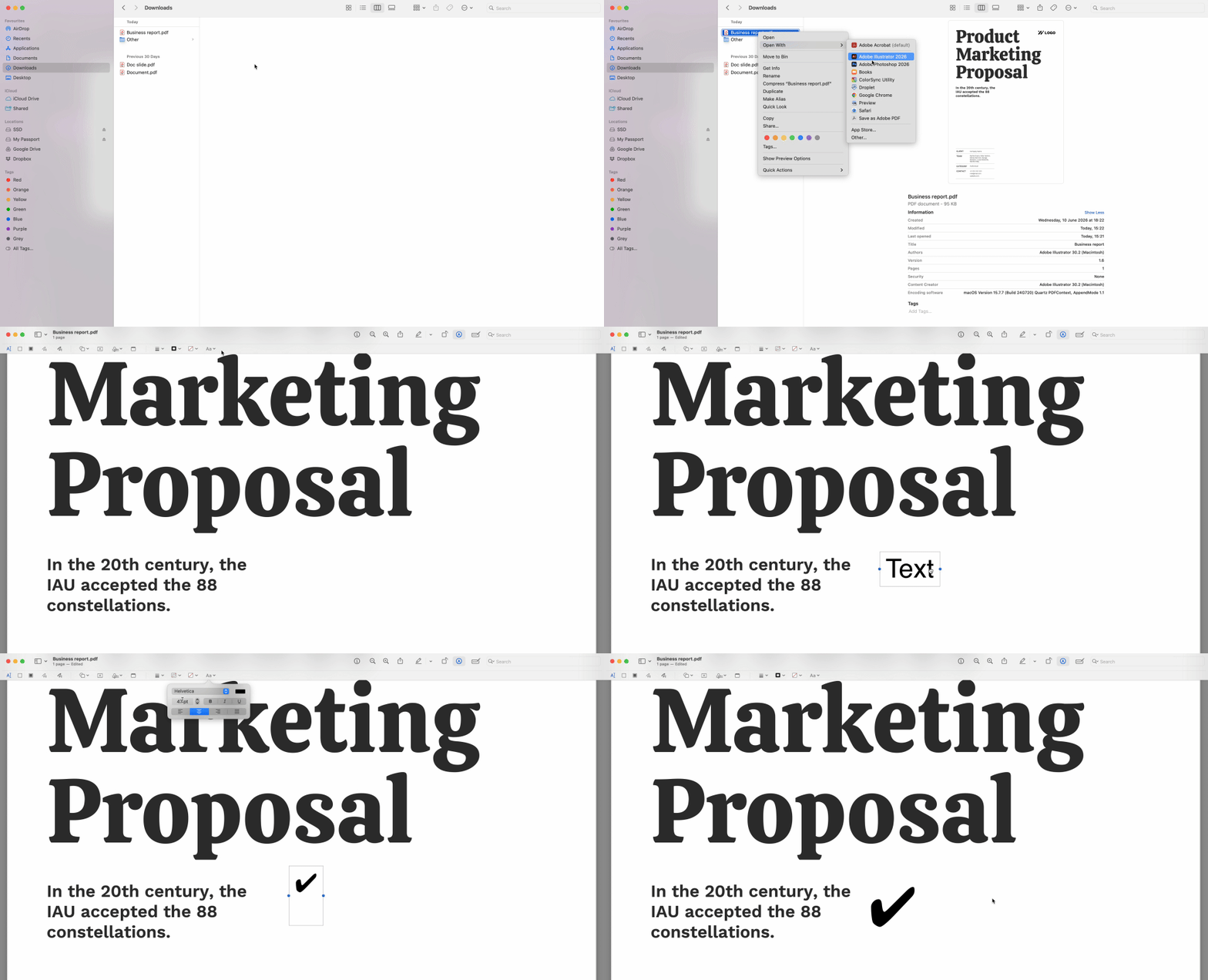
Power users skip uploads entirely with Unicode checkmark symbols that work in any reader supporting text input. Copy one of these characters — ✓ (check mark), ✔ (heavy check mark), or ☑ (ballot box with check). Then paste it into text fields or comment boxes to add checkmarks to PDF documents instantly.
- Copy your preferred symbol from this line: ✓ ✔ ☑
- Open your document in any reader with commenting or text annotation features.
- Click the text tool or comment feature in the toolbar.
- Position your cursor where you need the mark to appear.
- Paste the symbol using Ctrl+V (Windows) or Cmd+V (Mac).
- Adjust the font size to match your checkbox dimensions.
This approach delivers instant results when working with fillable forms that accept text input. The mark becomes part of the document's text layer, just like typing your name or address. It falls short only when files block all text insertion — a permission issue we'll solve in the troubleshooting section below.
Your operating system already includes tools to insert checkmarks in PDF files without third-party software. These built-in methods work offline and handle most everyday scenarios.
Open the file in Preview — macOS's default document viewer. Click the Markup Toolbar icon in the top-right corner (it resembles a pencil tip in a circle). Select the Shapes menu from the toolbar and choose the checkmark symbol. Drop it onto your document where needed, then drag the corner handles to resize. Preview saves your changes automatically when you close the file.
Windows: Add a check mark in PDF using Microsoft Edge
Right-click your file and select "Open with Microsoft Edge." Once the document loads, click the "Add text" or "Draw" button in the Edge toolbar. Use the text tool to type a capital letter X or V over the checkbox as a visual substitute. Position the text box precisely by dragging it into place. When finished, save the file using the download icon.
Edge's approach lacks the elegance of dedicated editors, but it requires no software installation and works on locked-down corporate machines where you can't download tools.
Troubleshooting: Why you can't add a checkmark in a PDF document
When every method fails and toolbars stay greyed out, your document likely carries permission restrictions. Read-only flags or password protection prevent any editing — clicking does nothing, pasting fails, and annotation tools refuse to activate.
The fix: use our Unlock PDF tool to remove these restrictions. Upload the secured file, let the platform strip away the permission blocks, then download the unlocked version. Now all three methods above will work because the security layer no longer interferes with marking documents.
Other quick checks: verify your reader is current (outdated software sometimes misreads form fields), and confirm the file isn't opened in a web browser's built-in viewer set to read-only mode. Some browsers default to view-only until you explicitly enable editing.
In professional environments, the appearance of your checkmarks carries weight beyond simple completion. Financial compliance officers and legal clerks scrutinize markup consistency as a document integrity signal.
Color conventions matter in 2026. Blue or black marks represent standard approval and comply with most legal and financial document requirements. Red checkmarks are reserved for audits, corrections, or supervisor review — using red on a routine form sends the wrong message. Avoid bright colors entirely; they appear unprofessional and raise questions about document authenticity.
Consistency across multi-page forms proves critical. Using different sizes, colors, or styles for checkboxes on pages one through ten suggests multiple editors or incomplete understanding. Hiring managers and compliance teams notice when checkmarks wander — it undermines the document's credibility. Choose one method, one color, one size, and apply it uniformly throughout the entire file.
Comparing ways to add a check mark in PDF files
Choose the right method for your situation:
| Goal |
Benefit |
| Quickest fix |
No tools or uploads needed (Unicode method) |
| Scanned/Flat PDF |
Full control over placement and size (online editor) |
| Security issues |
Fixes "greyed out" toolbars (unlock tool) |
| Large checklists |
Locates specific "to-do" items in long files (all methods) |
Match your constraint — whether time, file type, or access restrictions — to the solution that removes it fastest.

 Published Jun 19, 2026
  6 min
6 min  43 views