 Published Jun 19, 2026
  6 min
6 min  72 views
Need to mark up a PDF document but don't want to pay for software or upload sensitive files to a random site? The tools you already have can help you draw on a PDF directly on your device. Modern browsers include hidden PDF editors that process everything on your device. For advanced features like arrows and text boxes, web-based options fill the gap. This guide walks through all three methods and explains when to use each.
Method 1: Draw on a PDF in your browser: Chrome and Microsoft Edge
Most people don't realize their browser can edit PDF files. No upload means your document never leaves your computer — critical when you're marking up tax returns or legal contracts. Both Chrome and Edge process everything locally, making them the default choice for privacy-conscious workflows.
Using Microsoft Edge's native pen
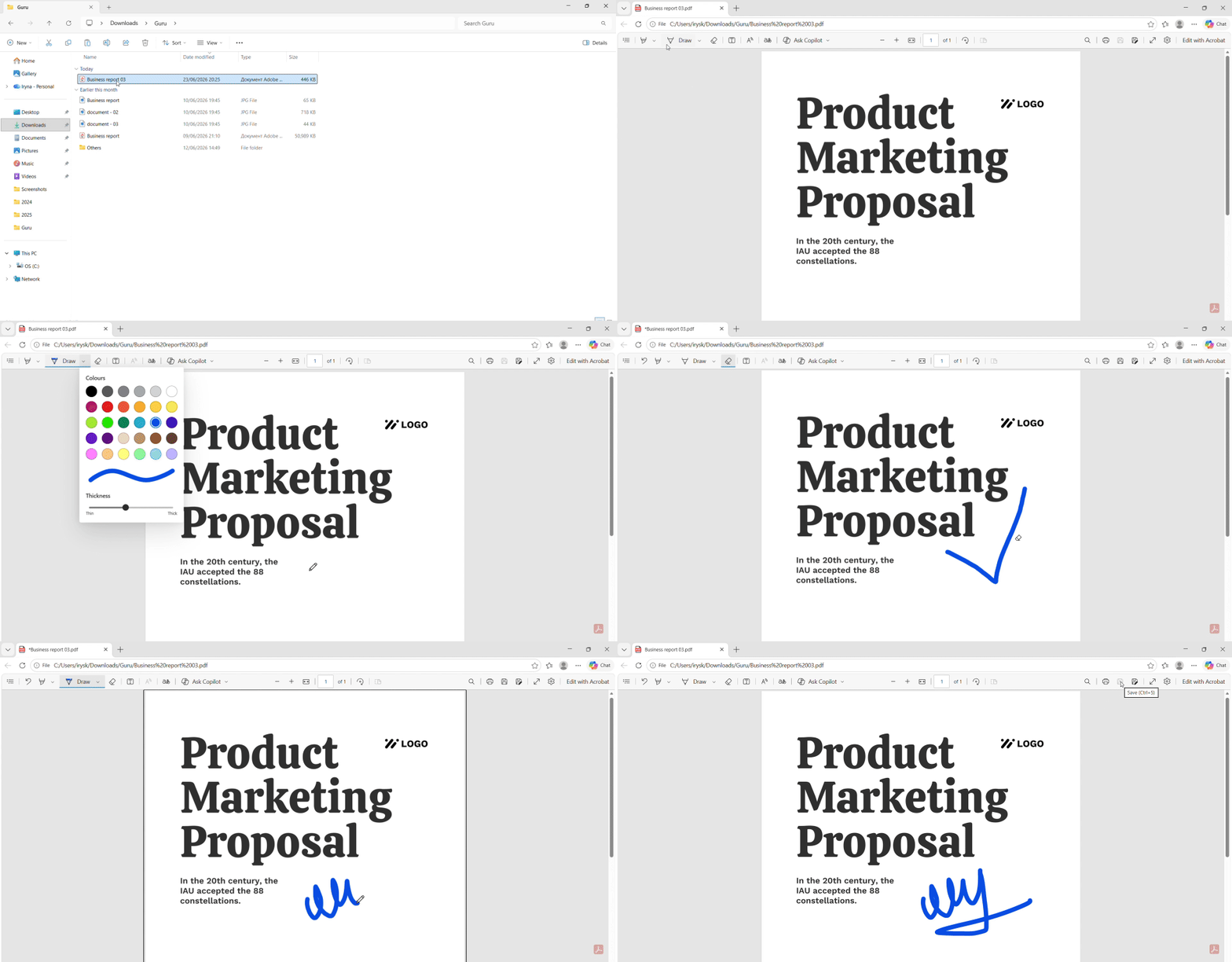
Edge has the most complete built-in PDF editor. Open any PDF file in Edge (drag-and-drop works), and look at the top toolbar. You'll see "Add Text" and "Draw" icons.
- Open your PDF document in Edge
- Click the "Draw" icon (pen symbol) in the top toolbar
- Select a pen color and thickness from the menu
- Click and drag to draw freehand on any page
- Use the eraser tool to remove mistakes
- Save the file (Ctrl+S or File > Save)
Edge supports stylus input, so Surface Pen or similar devices work smoothly. The drawing tools include a highlighter, pencil, and eraser. You can adjust opacity and thickness for precise markup. For simple annotations, this method covers most needs without searching for third-party software.
Using Chrome's markup preview
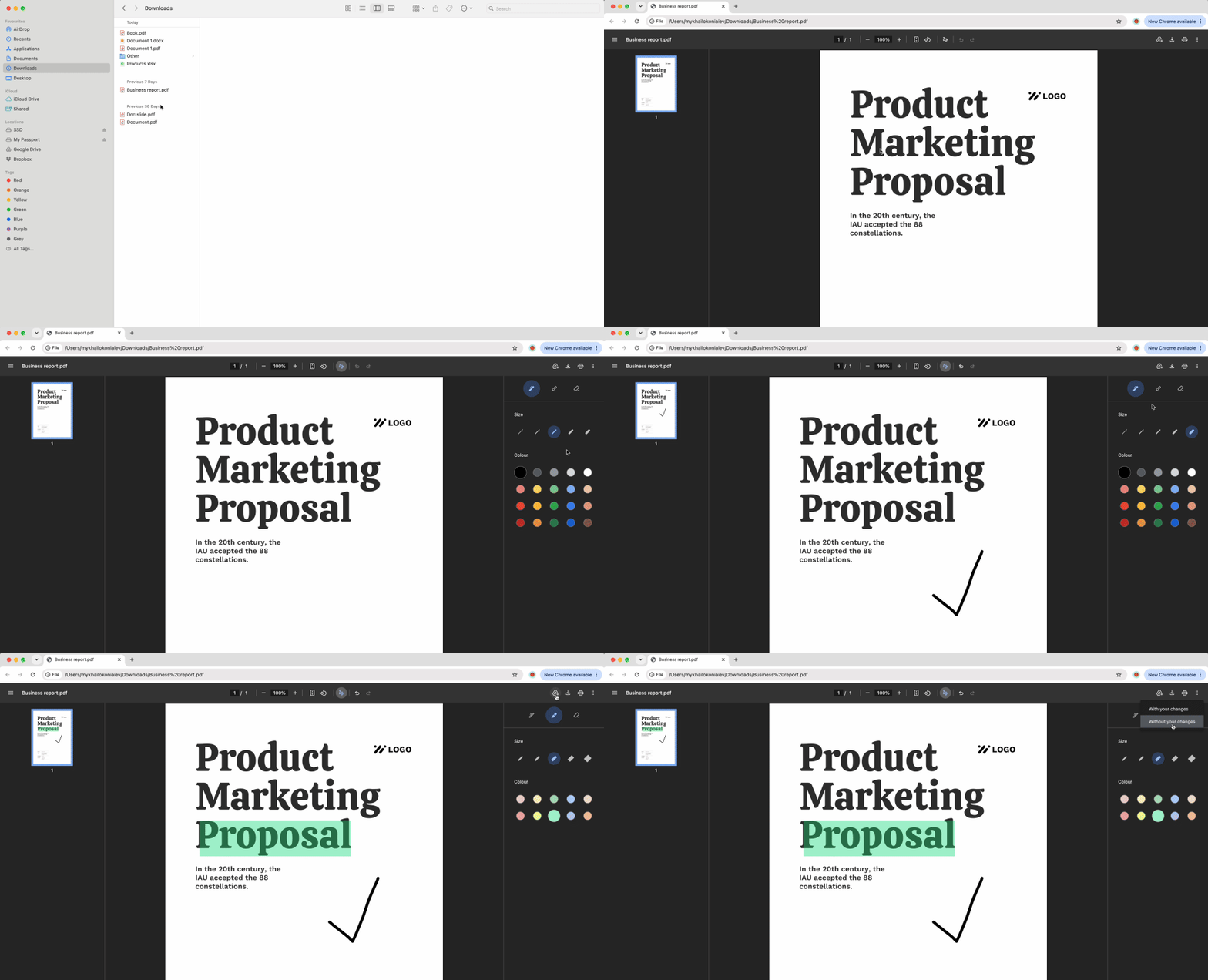
Chrome's native PDF viewer is more limited. It lacks dedicated drawing tools, but you can work around this with the print dialog.
- Open your PDF in Chrome
- Press Ctrl+P (Cmd+P on Mac) to open Print
- In the preview pane, look for any annotation extensions if installed
- Alternatively, use Chrome's basic highlighting by selecting text
- Change the destination to "Save as PDF"
- Click Save to create a new file with your marks baked in
This method works for quick highlights or if you have a Chrome extension installed. The limitation: Chrome doesn't offer freehand drawing or shapes natively, so complex markup requires a different approach.
Method 2: Edit and draw on a PDF online
Browser tools handle freehand sketches and text, but what if you need arrows, rectangles, or professional callouts? Web-based editors provide the full annotation toolkit. These platforms are built for multi-page PDF drawing and structured markup layers.
Choosing an online PDF editor
When browser methods hit their limits, web tools step in. They're designed for tasks that require precision — think presentation decks with arrows pointing to key data or contracts with highlighted clauses and margin notes.
Look for editors that support shapes, text boxes, and comment threads. Most offer a toolbar similar to desktop software, with drag-and-drop shape creation and adjustable formatting. Upload your file, select the markup tool you need, and work directly on the page. For non-sensitive files, this workflow balances convenience with capability.
Adding shapes, arrows, and annotations
Web editors use a "Comment" or "Markup" layer system. Click the annotation icon, choose your tool (arrow, rectangle, text box), and place it on the PDF file. You can resize shapes, change colors, and stack multiple annotations.
Common PDF drawings include:
- Arrows to direct attention
- Rectangles to frame sections
- Text boxes for explanations
- Highlights for emphasis
Adjustments happen in real time. Delete any element by selecting it and pressing the trash icon. Export the finished PDF when done. If complex graphics make the file too large, you can use our Compress PDF tool to reduce its size.
Method 3: PDF drawing tools in Preview and Safari
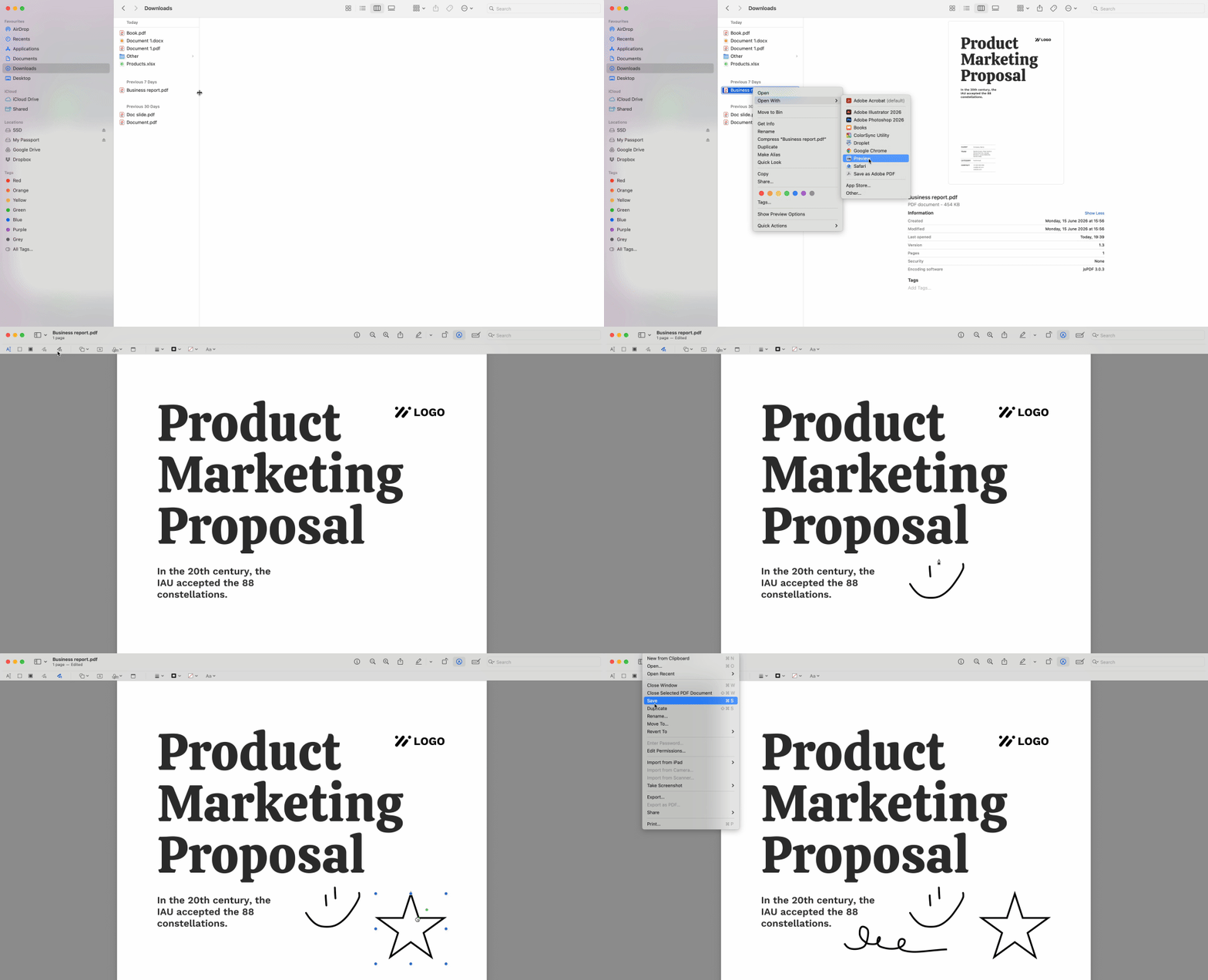
Mac users have a built-in advantage. Safari and the Preview app include a full markup toolbar — no software installation required. This is the fastest way to draw lines on PDF pages on macOS.
How to use the markup tool in Preview/Safari
Preview's markup toolbar rivals dedicated PDF editors. Open any PDF document in Preview (double-click the file), and the tools appear immediately.
- Open your PDF in Preview or Safari
- Click the "Markup Toolbar" icon (pencil in a circle)
- Select the Sketch tool, shapes, or text options
- Draw freehand with your trackpad or Apple Pencil
- Add shapes by clicking the shape icon and dragging
- Save the file (Cmd+S)
The toolbar includes freehand sketch, straight lines, arrows, ovals, rectangles, and text. You can adjust stroke width and color. Apple Pencil users get pressure sensitivity for natural handwriting. Preview also supports signatures — draw once and save it for reuse.
Flatten your PDF drawings to make them permanent
Here's what most guides skip: drawing on PDF files creates a layer on top of the original content. That layer is movable. Recipients can drag your signature to a different page or delete your annotations entirely. To prevent this, you must "flatten" the file.
How to use "Print to PDF" to lock your drawings
Flattening merges the annotation layer into the base PDF, making everything permanent. The easiest method works across all platforms.
- Open your annotated PDF
- Press Ctrl+P (Cmd+P on Mac) to open Print
- Change the printer destination to "Save as PDF" or "Microsoft Print to PDF"
- Click Print/Save
- Choose a new filename to preserve the original
The new file contains your drawings baked into the pages. Recipients see them as static content, not editable objects. This is essential for contracts, forms, or any document where annotation permanence matters. Note that flattened files may increase slightly in size due to rasterization of vector elements.
Privacy: when to draw on PDF documents locally
Every time you upload a PDF to an online tool, you're trusting that platform with your data. For public documents like event flyers, the risk is minimal. For financial statements, medical records, or legal contracts, the trade-off shifts. Browser-native editing eliminates the upload step entirely — the file never leaves your device.
This matters for compliance. HIPAA-protected health information, attorney-client privileged documents, and GDPR-regulated personal data carry strict handling requirements. Uploading to third-party servers introduces audit risk and potential breaches. The local-first workflow keeps full control in your hands. Whether you need to draw on documents for business or personal tasks, local tools offer superior privacy protection.
Which method should you use?
| Method | Best for... | Requires internet? |
|---|---|---|
| Microsoft Edge | Best Overall / Stylus Support | No |
| Chrome Preview | Quick highlights | No |
| Online Web Tools | Fancy shapes and text | Yes |
Browser tools win for sensitive files. Web editors are the right choice when you need advanced features on non-confidential documents. PDFFly processes files in your browser when possible, minimizing server-side handling for privacy-focused users. Use Edge or Chrome as your default for drawing on any PDF document that contains personal information. Save web tools for collaborative projects or complex layouts where shapes and callouts clarify your message.