How to Crop a PDF on Mac: The 2026 Guide

Most Mac users don't know their cropping tool hides data instead of deleting it — discover methods that actually remove what you cut.

Published Jun 19, 2026 Last updated Jun 22, 2026 6 min 65 views
How to Crop a PDF on Mac

Wondering how to crop a PDF on Mac when margins overwhelm the actual content? You open a scanned document and half the screen shows white space. Text shrinks to unreadable size on your phone. Or you need to remove sensitive information before sharing a file.

Mac users reach for Preview first — it ships with every macOS install and handles basic edits. But Preview's crop function hides a critical limitation that affects document security. The methods below range from Apple's native tool to professional online platforms, each suited for different scenarios. You'll learn when each approach works best and which one truly deletes what you remove.

Method 1: How to crop a PDF on Mac with Preview
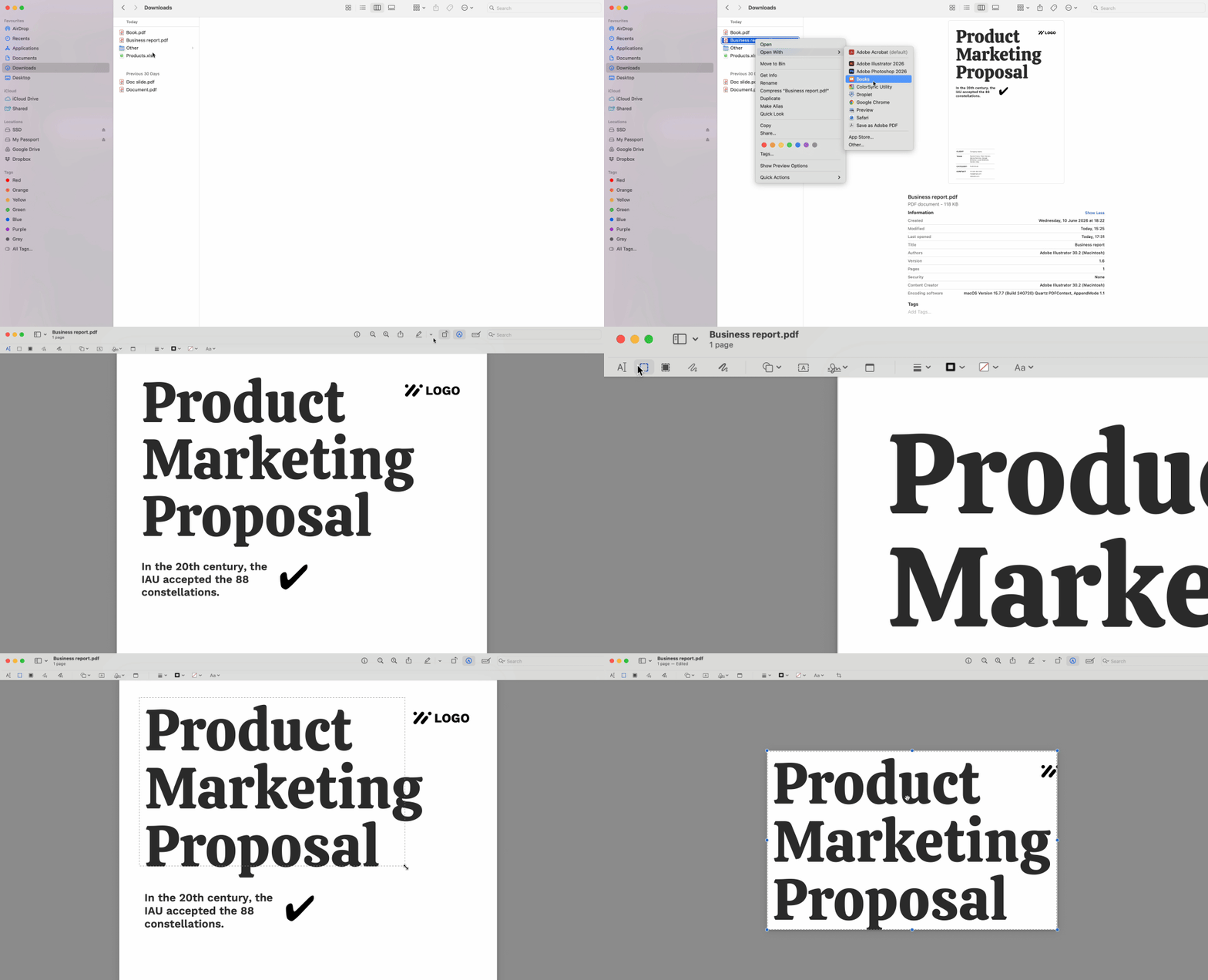
Preview offers the fastest way to crop PDFs on Mac for personal documents that don't require permanent data removal.

  1. Open your PDF in Preview.
  2. Press Cmd + K to activate the crop tool — the cursor changes to a crosshair.
  3. Click and drag to draw a rectangle around the area you want to keep.
  4. Release the mouse button, then press Cmd + K again to apply the crop.

Preview updates the visible boundaries immediately. For multi-page files, select all page thumbnails in the sidebar by clicking the first thumbnail, holding Shift, and clicking the last. Draw your crop rectangle on any visible page, then press Cmd + K — the crop applies to every selected page at once.

CRITICAL LIMITATION: This method is non-destructive. Preview modifies the file's CropBox metadata while leaving the original MediaBox intact. The cropped content remains embedded in your PDF's code, just hidden from standard viewers. Anyone with metadata inspection tools can recover what you removed. Use this approach for personal files only — never for documents containing confidential information, legal content, or data you need permanently deleted.

Method 2: Crop a PDF online with a PDF editor

When you need to crop PDFs in Preview but require true data deletion, web-based editors solve the security gap. PDFFly re-renders files during processing, physically removing cropped portions from the document structure instead of hiding them.

  1. Upload your PDF to the online editor.
  2. Select the crop tool from the toolbar.
  3. Define the area to keep by dragging on the page preview.
  4. Apply the crop to all pages with one click.
  5. Download the processed file.

The platform processes your file server-side, rebuilding it from scratch with only the content inside your crop boundaries. The original margins and any data outside your selection get stripped from the PDF code entirely. Metadata inspectors find nothing beyond the cropped area.

This approach works when you're optimizing PDFs for mobile viewing and want consistent margins across every page. It also handles batch operations Preview can't match — crop dozens of pages in seconds rather than repeating manual edits.
Method 3: Use the Print-to-PDF method to crop a PDF

Safari and Chrome hide a zero-install cropping method that works on any Mac.

  1. Open your PDF in Safari or Chrome.
  2. Choose File > Print from the menu bar.
  3. Locate the Scale and Margins dropdowns in the print settings.
  4. Reduce the scale percentage to shrink content away from edges.
  5. Increase margin values to push content inward from all sides.
  6. Watch the preview update in real-time and adjust until unwanted borders disappear.
  7. Click the PDF button in the lower-left corner, then select "Save as PDF."
  8. Choose a filename and destination.

The browser generates a new file with your adjusted boundaries baked in — this is a destructive crop that creates a fresh document. The method requires trial and error to nail exact dimensions. You can't draw a precise selection box like Preview offers. But it needs no installation and works identically across macOS versions. For quick jobs where pixel-perfect accuracy doesn't matter, this browser-based approach delivers.

Method 4: Different ways to crop a PDF for mobile and e-readers

Readers crop PDFs primarily to enlarge text on small screens. A scanned book page with two-inch margins becomes unreadable on a six-inch Kindle display — the actual text shrinks to accommodate unnecessary white space.

Remove those margins and the readable area expands by 30-40 percent. Your e-reader's font scaling works with larger source text, producing comfortable reading sizes without manual zoom.

Test your cropped file on the target device before finalizing. E-readers handle portrait-oriented content best, so crop to a 2:3 aspect ratio when possible. Tablets and phones display various orientations — verify both landscape and portrait views show your content properly.

Batch processing matters here. A 300-page novel requires consistent crops on every page. Preview's thumbnail selection handles this if you don't mind the metadata issue. Online tools process the entire document at once while removing the underlying data completely.

Troubleshooting: Why your PDF file won't crop on Mac

The crop option greys out when your PDF carries password protection or editing restrictions. Enterprise documents often arrive with these permissions locked by the sender.

You need to remove passwords from PDF files before any editing tool allows modifications. Upload the protected file, let the tool clear the permissions, then download the unrestricted version.

Some PDFs show crop tools but fail to save changes. This indicates file corruption — the document structure contains errors preventing modifications. Try opening the file in a browser, then use the Print to PDF method above to create a clean copy. The fresh file usually accepts edits without issues.

Incompatible formats occasionally masquerade as PDFs. Files with .pdf extensions but non-standard encoding won't respond to standard tools. Converting to a different format and back to PDF often resolves this, though you lose some fidelity in the process.

Why your cropped PDF file on Mac can expose hidden data

PDF specification includes distinct coordinate systems that most viewers ignore. The MediaBox defines the physical page boundaries — the actual dimensions of your document. The CropBox sets visible boundaries — what displays on screen.

Standard Mac applications modify only the CropBox when you crop. The MediaBox remains unchanged, preserving all original content in the file structure. Recipients can examine PDF metadata using inspection tools to reveal the full MediaBox dimensions and recover everything you thought you removed.

This vulnerability matters for legal filings, financial statements, medical records, or any document containing information you need permanently deleted. Opposing counsel, auditors, or malicious actors can exploit the gap between visible and actual content.

How to permanently crop a PDF and remove hidden content

File neutralization closes the gap between visible and actual content. The process re-encodes your PDF through a web server that rebuilds the document from scratch. The new file's MediaBox matches your CropBox exactly — no hidden data survives in the code. What you cropped is physically absent from every layer of the document structure, not merely hidden behind a digital curtain.

Implement this practice when document confidentiality matters. The few extra seconds of processing protect against information leakage that Preview's convenient but non-destructive crop can't prevent. Consider it a security audit for sensitive files — verify that what you removed stays removed.

Related articles