How to Duplicate a Page in a PDF: 5 Free Ways

Master these simple browser tricks and free tools to copy PDF pages in seconds — no expensive software required.

Published Jun 19, 2026 Last updated Jun 22, 2026 7 min 67 views
How to Duplicate a Page in a PDF

Need to duplicate a page in your PDF but don't have expensive editing software? Whether you're creating fillable form templates, building bilingual documents, or preparing materials with repeated content, knowing how to duplicate a page in PDF files is simpler than most people realize. This guide covers five free methods that work on any device.

Method 1: Copy a PDF page using Print to PDF (Chrome, Edge, and Safari)

This is the fastest, most universal method for duplicating PDF pages. Every modern browser includes a built-in PDF printer that lets you rearrange and duplicate pages using custom page ranges. The best part? It works on Windows, Mac, Linux, and Chrome OS without installing a single app.

The secret lies in how browsers interpret page ranges. When you open the print dialog and enter custom page numbers, you can list the same page multiple times to create duplicates. For example, entering "1, 1, 2, 3" tells the browser to include page 1 twice, followed by pages 2 and 3 in order.

Here's how to duplicate pages in PDF files using your browser:

  1. Open your PDF file in Chrome, Edge, Safari, or Firefox by dragging it into a browser window.
  2. Press Ctrl+P on Windows/Linux or Cmd+P on Mac to open the print dialog.
  3. Under "Destination," select "Save as PDF" (not your physical printer).
  4. Choose "Custom" or "Pages" instead of "All pages."
  5. Enter your page range with duplicates — for instance, "1, 1, 2, 3" duplicates page 1, or "1-3, 2, 4-6" duplicates page 2 between sections.
  6. Click "Save" and choose where to save your new PDF.

This browser method shines when you need to copy page in PDF documents multiple times across a file. Creating a 20-page training manual from a 5-page template? Enter "1-5, 1-5, 1-5, 1-5" to quadruple your content. The resulting file contains all duplicates in your specified order, ready to edit or distribute.

Method 2: How to duplicate PDF pages on Mac using Preview
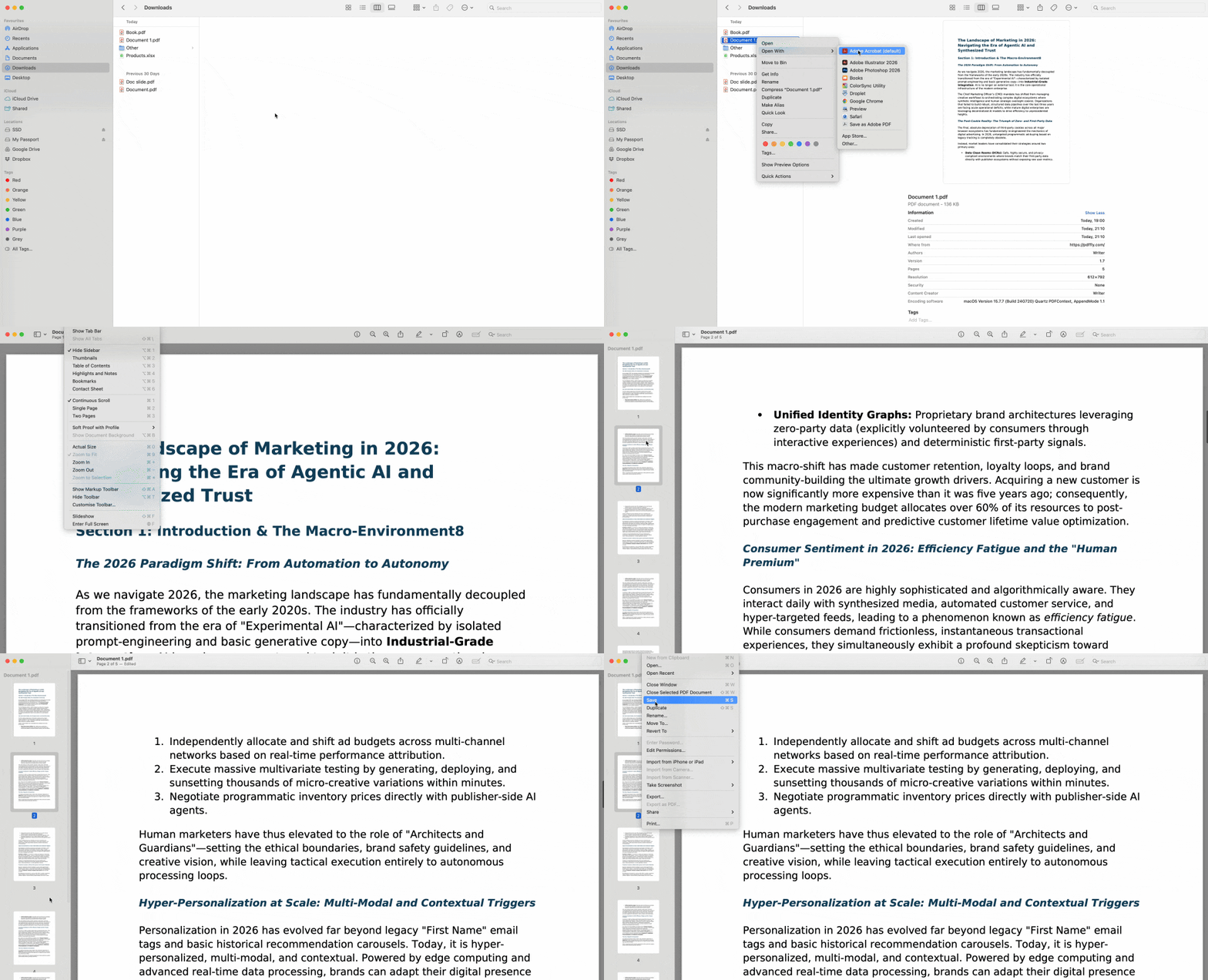
Mac users have the most elegant solution built right into their operating system. Preview, the default PDF viewer on macOS, includes thumbnail-based page management that makes duplicating pages as simple as dragging an icon.

The Option key is your secret weapon here. While Preview normally moves pages when you drag thumbnails, holding Option while dragging creates copies instead — you'll see a green plus icon appear on your cursor to confirm you're duplicating rather than moving.

Follow these steps to duplicate a page in PDF documents using Preview:

  1. Open your PDF in Preview (double-click the file or right-click and choose "Open With > Preview").
  2. Click "View" in the menu bar, then select "Thumbnails" to display the sidebar with page previews.
  3. Locate the page you want to duplicate in the thumbnail sidebar.
  4. Hold down the Option key on your keyboard.
  5. Click and drag the thumbnail to the position where you want the duplicate to appear.
  6. Release the mouse button, then release the Option key — a copy of the page now appears in your chosen location.
  7. Press Cmd+S to save the modified PDF.

Preview also supports copy-and-paste for duplicate pages. Select a thumbnail, press Cmd+C to copy it, click where you want the duplicate, and press Cmd+V to paste. This approach works well when duplicating pages to the end of a document rather than inserting them between existing pages.

Method 3: How to duplicate pages in a locked PDF document

You've tried duplicating pages, but nothing happens — the print dialog shows greyed-out options, or Preview won't let you drag thumbnails. Your PDF likely has editing restrictions that prevent page manipulation, even though you can open and read it normally.

PDF security comes in two forms: password protection (which blocks opening the file) and permission restrictions (which block editing, printing, or copying content). The second type causes problems when attempting to duplicate PDF pages because the file's metadata tells software to disable editing features.

Corporate documents, legal contracts, and downloaded forms often carry these restrictions. You'll notice the issue when browser print dialogs limit your options or Preview's thumbnail sidebar becomes unresponsive. Before duplicating pages in a restricted PDF, you need to remove the editing permissions using a PDF Unlocker.

Important: Only unlock PDFs you have legal permission to edit. Removing restrictions from copyrighted materials or confidential documents you don't own may violate agreements or laws. If you're unsure whether you should unlock a file, contact the document's creator for an editable version.

Method 4: Duplicate pages to create bilingual PDF documents

International businesses, academic researchers, and legal professionals often need documents that present content in multiple languages side by side. Rather than maintaining separate English and Spanish contracts or creating parallel presentation decks, duplicating pages within a single PDF creates professional bilingual materials.

The workflow starts with duplication, then adds translation. This approach maintains consistent formatting — margins, fonts, images, and layout remain identical between language versions because they start from the same source page.

Here's how to build bilingual PDFs by combining duplicate pages and translation:

  1. Use Method 1 (browser print) or Method 2 (Mac Preview) to duplicate the pages you need translated.
  2. Save the PDF with duplicate pages — you now have two copies of each page that needs translation.
  3. Navigate to our PDF Translator.
  4. Upload your duplicated PDF and select your target language.
  5. Download the translated version.
  6. Use Method 1's custom page ranges to merge original and translated pages in your preferred order.

This technique excels for contracts, user manuals, training materials, and presentation slides. A 10-page English product guide becomes a 20-page English-Spanish guide with original and translation on facing pages. Readers flip between languages without switching documents.

Method 5: Duplicate and extract key PDF pages with AI

Long PDFs overwhelm readers. A 50-page technical manual or dense research paper buries key information under excessive detail. What if you could duplicate complex pages, then create condensed summary versions that sit right next to the originals — giving readers both quick reference and deep detail in one document?

This approach transforms how professionals handle information-heavy PDFs. Research papers gain executive summary pages before detailed methodology sections. Financial reports include snapshot pages before comprehensive data tables. Training manuals offer quick-reference duplicates alongside step-by-step instructions.

The three-step workflow combines page duplication with content summarization:

  1. Identify dense, complex pages that would benefit from summary versions — data tables, detailed procedures, lengthy explanations.
  2. Duplicate those pages using any method from this guide (browser print or Preview work equally well).
  3. On the duplicate page, replace the detailed content with a condensed summary version — bullet points highlighting key data, simplified step lists, or executive overviews.

The value lies in proximity. Readers encounter the summary page first, decide whether they need details, then immediately access the full version on the next page. No flipping between document sections or maintaining separate summary files — everything exists in logical sequence within one PDF.

Managing file size after duplicating pages

After adding multiple duplicate pages, your file size will increase. Each duplicated page adds roughly the same storage as the original, while a page with high-resolution images might add 2-5 MB per duplicate. When your enhanced PDF grows too large for email attachments or slow downloads, use our PDF Compressor to reduce file size while maintaining readability.

The intelligent duplicate strategy represents how modern document design should work. Rather than choosing between comprehensive and concise, you provide both formats in the same file. PDFFly offers the complete toolkit to build, optimize, and distribute these enhanced documents — all through browser-based tools accessible from any device.

Related articles