How to Print a PDF: The Fail-Safe 2026 Guide

Master PDF printing in seconds across any device. No downloads, no apps, just browser shortcuts and built-in tools that actually work.

Published Jun 19, 2026 Last updated Jun 22, 2026 9 min 57 views
How to Print a PDF

Master PDF printing in seconds across any device. No downloads, no apps, just browser shortcuts and built-in tools that actually work.

Need to print a PDF without installing software? You're one keyboard command away. Whether you're on a desktop computer or holding a phone, every modern device has built-in tools for printing PDF files. This guide from PDFFly covers the universal method that works across platforms, plus device-specific instructions when you need them.

The one-second shortcut to print any PDF file instantly

Printing a PDF file usually starts with the same keyboard shortcut in any browser, PDF reader, or operating system:

  • Windows / Linux: Ctrl+P
  • Mac: Cmd+P

Press it while viewing any PDF, and the print dialog opens immediately. From there, select your printer, choose your pages, and hit Print.

This works in Chrome, Edge, Safari, Firefox, and virtually every other application that can display a PDF. If you remember nothing else from this guide, remember Ctrl+P.

Most people open PDFs directly in their web browser. Here's how each one handles printing.

Chrome & Microsoft Edge
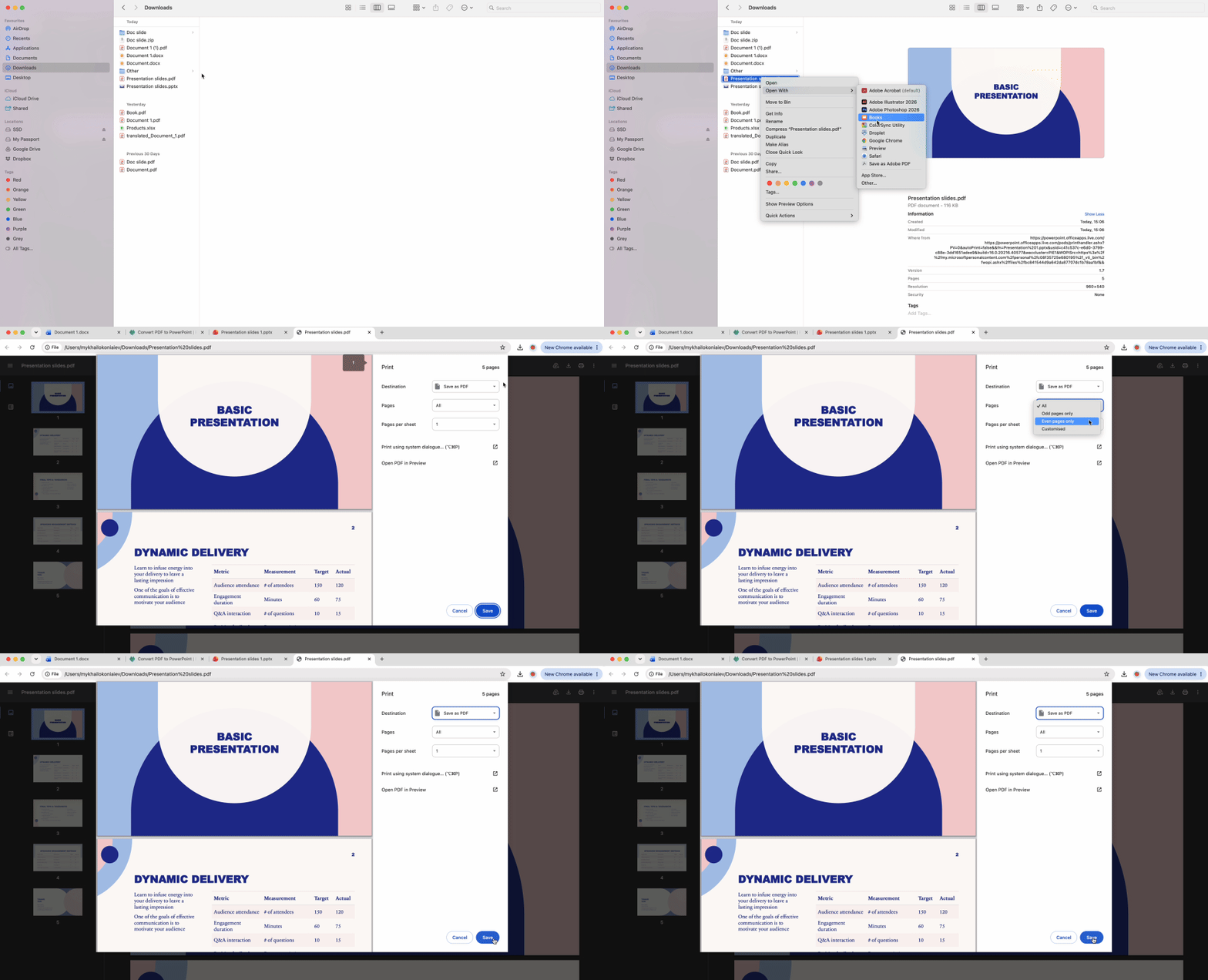
Chrome and Edge share the same Chromium-based print engine, so the steps are identical:

  1. Open your PDF in the browser (drag the file into a new tab, or click a PDF link).
  2. Press Ctrl+P (Windows) or Cmd+P (Mac).
  3. Select your printer from the Destination dropdown.
  4. Configure pages, copies, and layout.
  5. Click Print.

The print preview panel on the left shows exactly what will come out of your printer. Use it to catch margin issues or blank pages before wasting paper.

If the print dialog doesn't appear, right-click anywhere on the PDF and select Print from the context menu. Some browser extensions can block the shortcut.

Safari (Mac)

Safari offers two paths to the same print dialog. Go to File > Print in the menu bar, or click the Share icon (square with upward arrow) in the toolbar and select Print from the share menu.

Safari opens macOS's native print interface, which looks slightly different from Chrome's Chromium-based dialog. The key difference: Safari's dialog defaults to a compact view. Click "Show Details" at the bottom to reveal advanced options like Paper Handling and Color Matching. These controls mirror what you'd find in Preview, Apple's built-in PDF viewer.

How to print a PDF from iPhone using AirPrint

AirPrint is already installed on every iPhone running iOS 4.2 or later. The feature works with most modern wireless printers automatically.

  1. Open your PDF in the Files app, Safari, or Mail.
  2. Tap the Share icon (square with upward arrow).
  3. Scroll down in the share sheet and tap Print.
  4. Select your printer from the list of available devices.
  5. Configure settings (pages, copies, color) and tap the Print button.

If your printer doesn't appear: Make sure your iPhone and printer are on the same Wi-Fi network. AirPrint uses local network discovery, so a VPN or guest network can block the connection. Toggle Wi-Fi off and back on if the printer still doesn't show.

The pinch-to-zoom trick: In the print preview screen, pinch outward on the page thumbnail with two fingers. This creates a full-screen PDF preview that you can save, share, or markup before printing. It's a hidden way to generate a clean digital copy of any printable content.

How to print a PDF from Android using Default Print Service
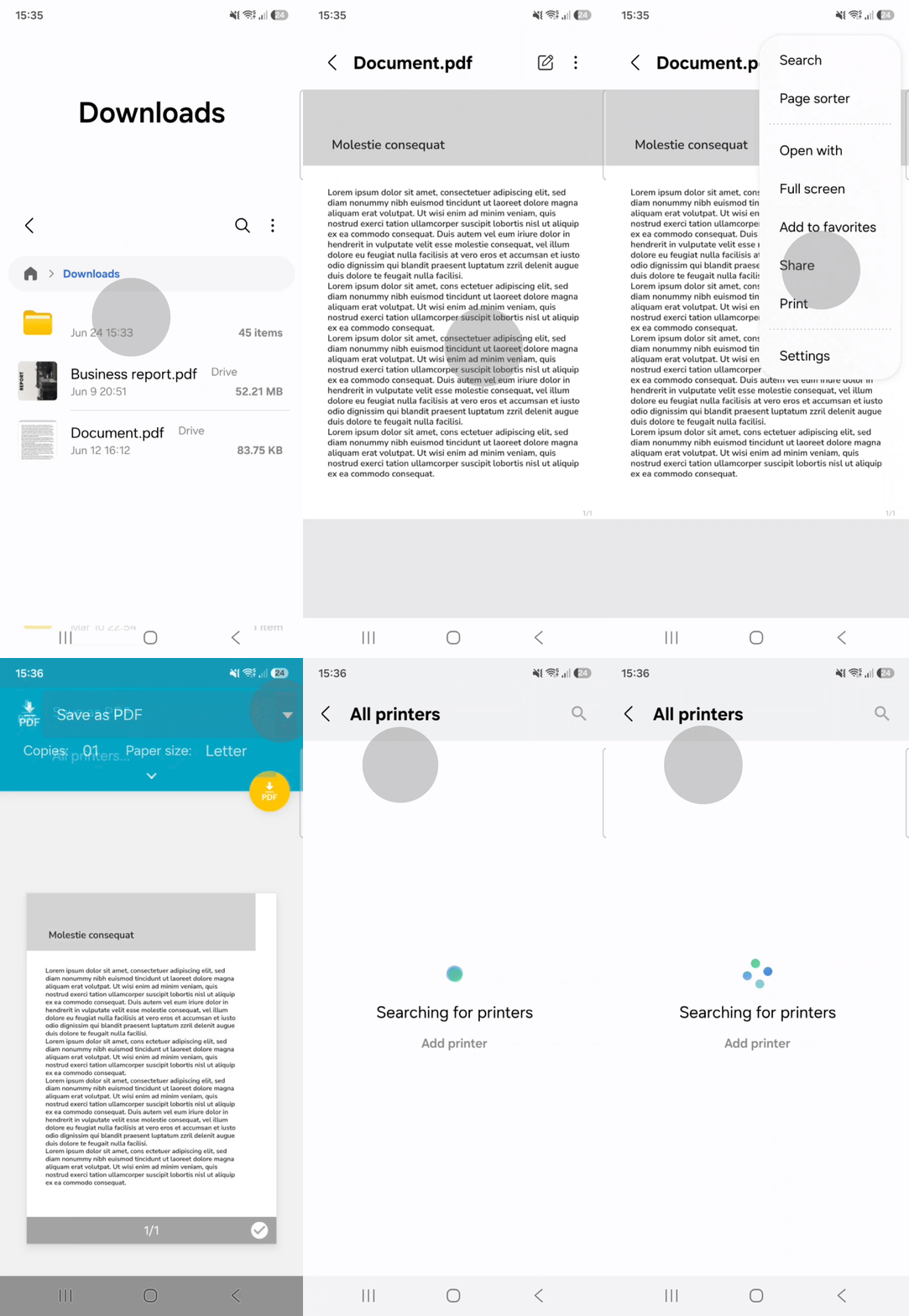
Android's built-in print system works through Default Print Service, which comes pre-installed on most devices.

  1. Open your PDF in Google Drive, Files by Google, or your browser.
  2. Tap the three-dot menu (⋮) in the top-right corner.
  3. Select Print or Share > Print from the dropdown.
  4. Choose your printer from the list of available devices.
  5. Configure settings (pages, copies, color) and tap the print icon.

If your printer doesn't appear: The Print Spooler may be disabled. Navigate to Settings → Connected Devices → Connection Preferences → Printing. Make sure the Default Print Service toggle is enabled (turned ON). This activates Android's printer discovery protocol. Once enabled, go back to your PDF and try printing again. Your network printer should now appear in the device list.

How to print a PDF on a Mac using the Preview app
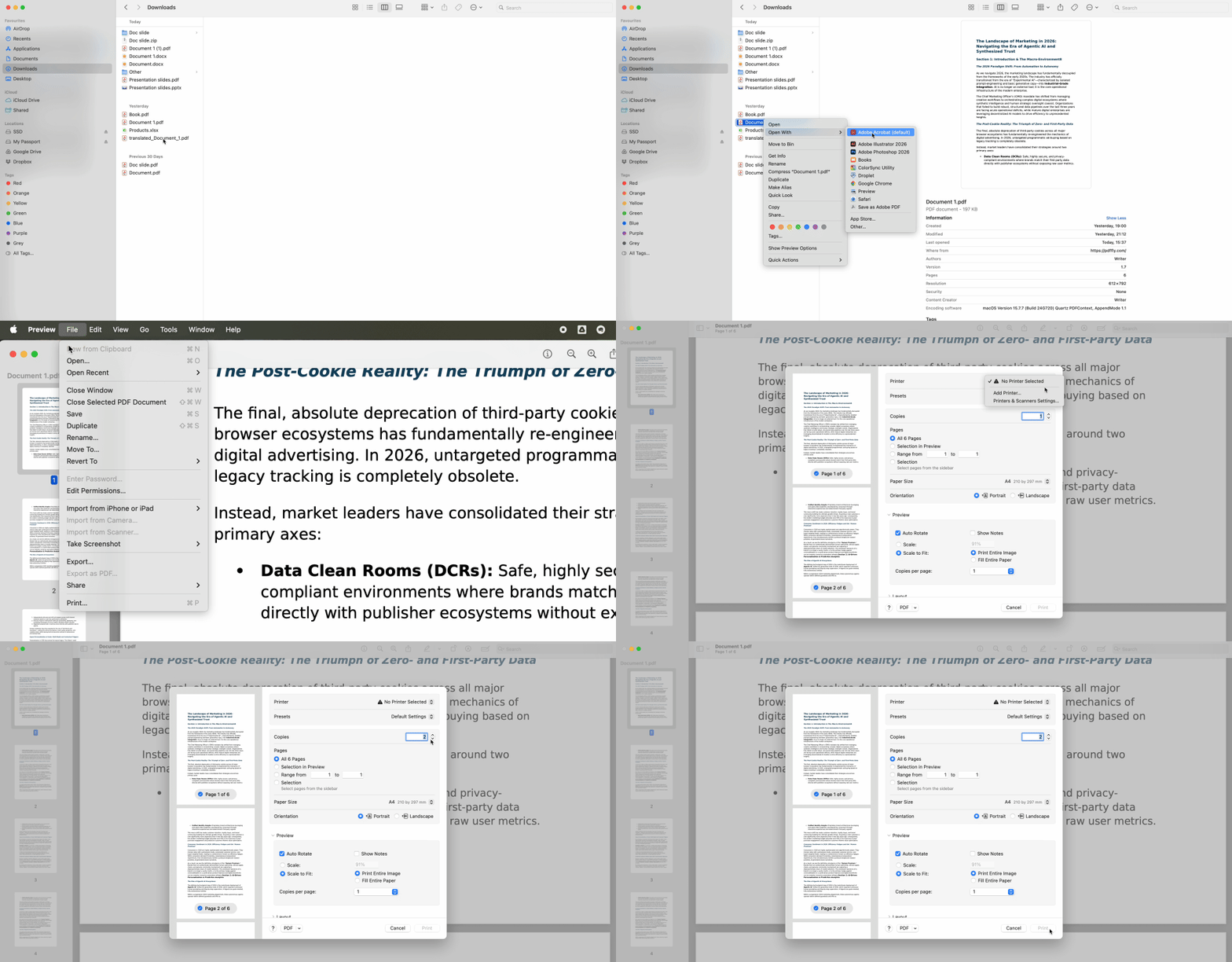
Preview is macOS's secret weapon — it's more powerful than most users realize and eliminates the need for third-party PDF software when printing PDFs.

Follow these steps to print PDF files using Preview:

  1. Double-click your file (it opens in Preview by default)
  2. Press Command+P or go to File → Print in the menu bar
  3. Select your printer from the "Printer" dropdown
  4. Configure basic settings like pages, copies, and orientation

The hidden feature: Click "Show Details" in the bottom-left corner of the print dialog. This expands the window to reveal advanced controls. The Layout tab lets you print multiple pages per sheet (2-up, 4-up layouts) to save paper. Paper Handling gives you reverse page order and scale-to-fit options. Color Matching controls color profiles for professional printing jobs.

Preview remembers your settings between sessions, so adjustments to layout or paper size carry forward automatically.
Quick reference: Native print features by platform

PlatformNative featurePro tip
iPhoneAirPrintPinch-to-zoom on preview for digital PDF copy
AndroidDefault Print ServiceToggle "On" in Connected Devices → Printing settings
MacPreview app"Show Details" button reveals advanced scaling & layout

Advanced print settings that help save ink and paper

These overlooked controls save money and reduce waste when printing a PDF. Every platform includes them, but they're often buried under "More Settings" or "Advanced" menus.

Layout & color

Switch to "Grayscale" or "Black & White" mode to eliminate expensive color ink usage. Look for this option under "Color" or "Print Options" in your print dialog. Grayscale preserves shading and tonal variation — useful for documents with charts or photos. Pure black-and-white converts everything to binary (no grays), which works for text-only pages.

Color cartridges cost significantly more than black ink. Grayscale printing can extend your color cartridge life by months for everyday documents.

Printing specific pages from a PDF document

Specify which pages to print using range syntax in the "Pages" field. Use commas for individual pages and hyphens for ranges: "1, 3, 5-10" prints pages 1, 3, and 5 through 10. This prevents wasting paper on cover pages, blank sheets, or appendices you don't need.

Most print dialogs accept complex combinations: "1-5, 8, 12-15, 20" works in all browsers and desktop applications.

Two-sided (duplex) printing

Enable "Two-Sided" or "Duplex" if your printer supports it — this requires hardware with automatic document feeding. Choose "Long-Edge binding" for standard book-style flipping (most common) or "Short-Edge" for calendar-style flipping.

Duplex cuts paper usage in half for multi-page documents. Look for this setting under Layout or Print Options. If your printer lacks automatic duplex, some dialogs offer "Manual Duplex" with prompts to flip pages by hand.

How to fix cut off PDF margins

Text disappearing at the edges is the most common PDF printing complaint. The fix takes one click once you know where to look.

The problem: Most printers cannot physically print within 0.25 inches of page edges — internal rollers need that space to grip paper. When your print dialog defaults to "Actual Size" or "100% scale," content near the edges falls outside this printable area and disappears.

The solution: Locate the "Scale" or "Scaling" setting in your print dialog. In Chrome and Edge, click "More Settings" then find Scale. In Safari and Preview on Mac, click "Show Details" then look under Paper Handling. Change from "Default" or "Actual size" to "Fit to printable area" (sometimes labeled "Shrink to fit" or "Scale to fit").

This automatically reduces the PDF content by 3-5% to ensure everything fits within your printer's physical margins. Use the print preview to verify — zoom in on the corners to confirm no text is cropped. The slight size reduction is imperceptible for most documents and prevents you from reprinting pages.

Troubleshooting: Why won't my PDF print?

When the print button doesn't work or produces errors, these are the most common culprits.

The PDF is password protected

Some PDFs have "Printing Prohibited" security settings embedded in the file itself. Symptoms include grayed-out print options or error messages saying "Printing not allowed."

If you have legitimate permission to print the document (you purchased it, created it, or received authorization), use our Unlock PDF tool to remove restrictions. Contact the document owner if you're unsure about permissions. Never attempt to bypass security on copyrighted or legally restricted materials.

Browser cache issues

Print preview loads blank pages or the dialog freezes and won't open. First, refresh the page by pressing F5 (Windows) or Cmd+R (Mac). If that fails, open the PDF in an Incognito or Private browsing window — this bypasses corrupted cached data.

To open Incognito mode: Ctrl+Shift+N in Chrome (Windows), Cmd+Shift+N in Safari (Mac), or Ctrl+Shift+P in Edge. Try printing from this clean session. If the issue persists, download the file and try opening it in a different browser or Preview.

Printing doesn't require paper — every platform lets you "print" to a digital PDF file instead. This technique transforms messy web pages, emails, and editable documents into clean, unchangeable files.

Why Print to PDF?

Print-to-PDF creates an immutable record. Once you save something as a PDF this way, the content cannot be edited without specialized software. This makes it useful for:

  • Locking invoices, signed forms, and contracts so they can't be accidentally changed
  • Archiving web pages before they're deleted or updated
  • Saving confirmation emails as standalone receipts
  • Flattening complex PDFs with layers, annotations, or form fields into a single flat document

How to print to PDF on each platform

Creating a PDF for print works much like regular printing: open the print dialog with Ctrl+P or Cmd+P, but instead of choosing a physical printer, select the virtual PDF option:

  • Windows: Select "Microsoft Print to PDF" or "Save as PDF" from the Printer dropdown
  • Mac: Click the "PDF" dropdown in the bottom-left corner of the print dialog, then select "Save as PDF"
  • Chrome (any OS): Select "Save as PDF" from the Destination list

Choose your save location, name the file, and click Save. The result is a standard PDF that any device can open and print later.

This technique works from any application that supports printing — word processors, email clients, spreadsheets, web browsers, and image viewers all produce clean PDFs through virtual printing.

Related articles