Method 1: Embed fonts in a PDF using Print to PDF (Chrome, Edge, Safari)
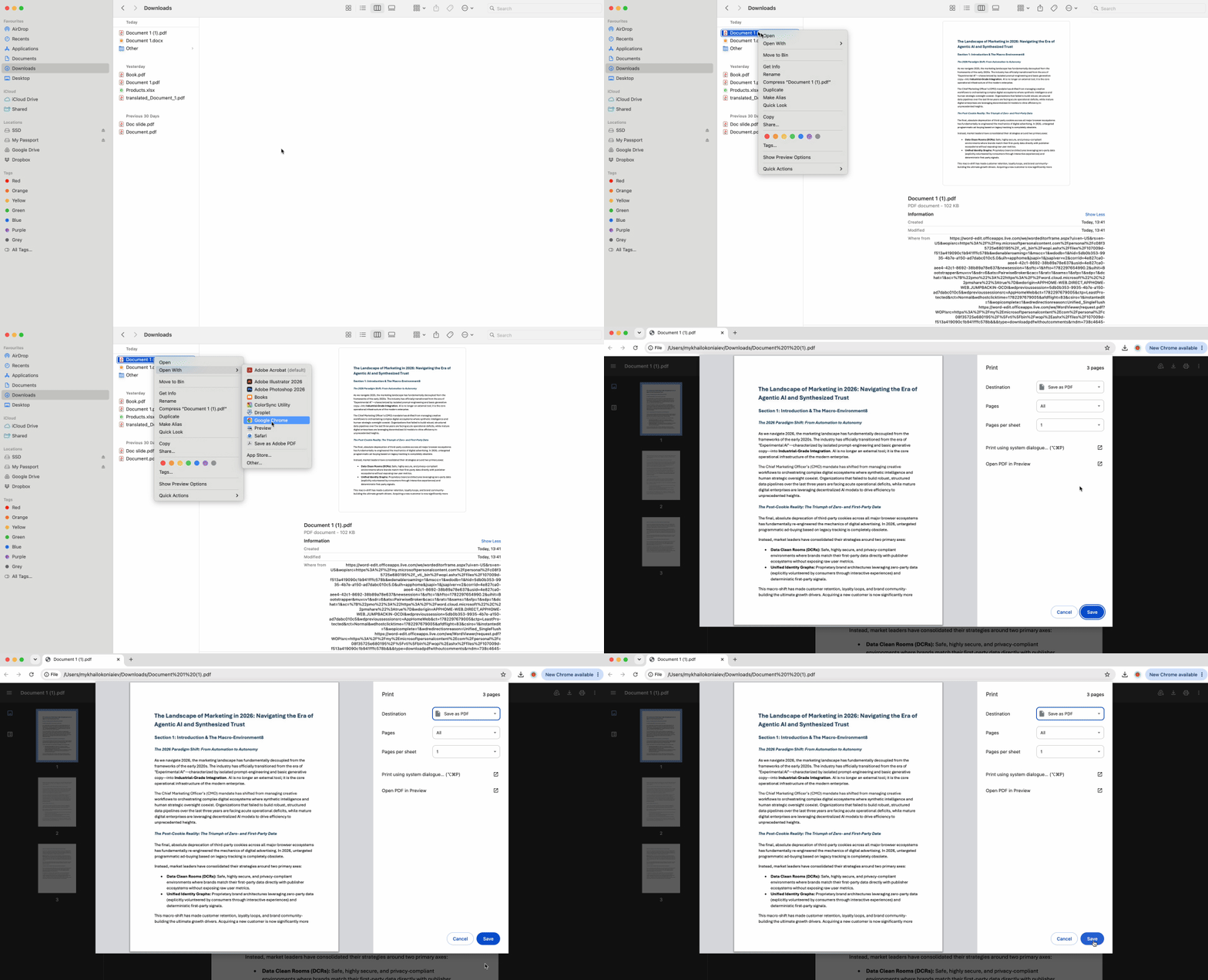
This universally compatible method requires zero software installation and handles most font embedding scenarios. When you print to PDF from a browser, the rendering engine automatically packages all visible fonts into the new file as part of the PDF creation process.
The browser method works because Chrome, Edge, and Safari comply with PDF/A standards by default when generating PDFs. The engine captures on-screen fonts as embedded objects during the print operation, solving the how to embed fonts in PDF challenge in one streamlined action.
- Open your source document in Chrome or Edge (works with Word files, Google Docs, web pages, or existing PDFs with font issues).
- Press Ctrl+P (Cmd+P on Mac) to open the print dialog.
- Select "Save as PDF" or "Microsoft Print to PDF" as your destination printer.
- Click "Save" and choose where to store the new file.
- Open the saved PDF and verify embedding using the check method above.
This creates a fresh PDF with all fonts embedded while leaving your original file untouched. The method handles web pages (capturing Google Fonts and custom CSS fonts), cloud documents opened in browser tabs, and lightweight fixes for PDFs that failed to embed fonts during their initial creation. For business documents, student assignments, and web-to-PDF archiving, the browser print method delivers professional results without the learning curve of specialized software.
Method 2: Embed fonts with Microsoft Word for the Web
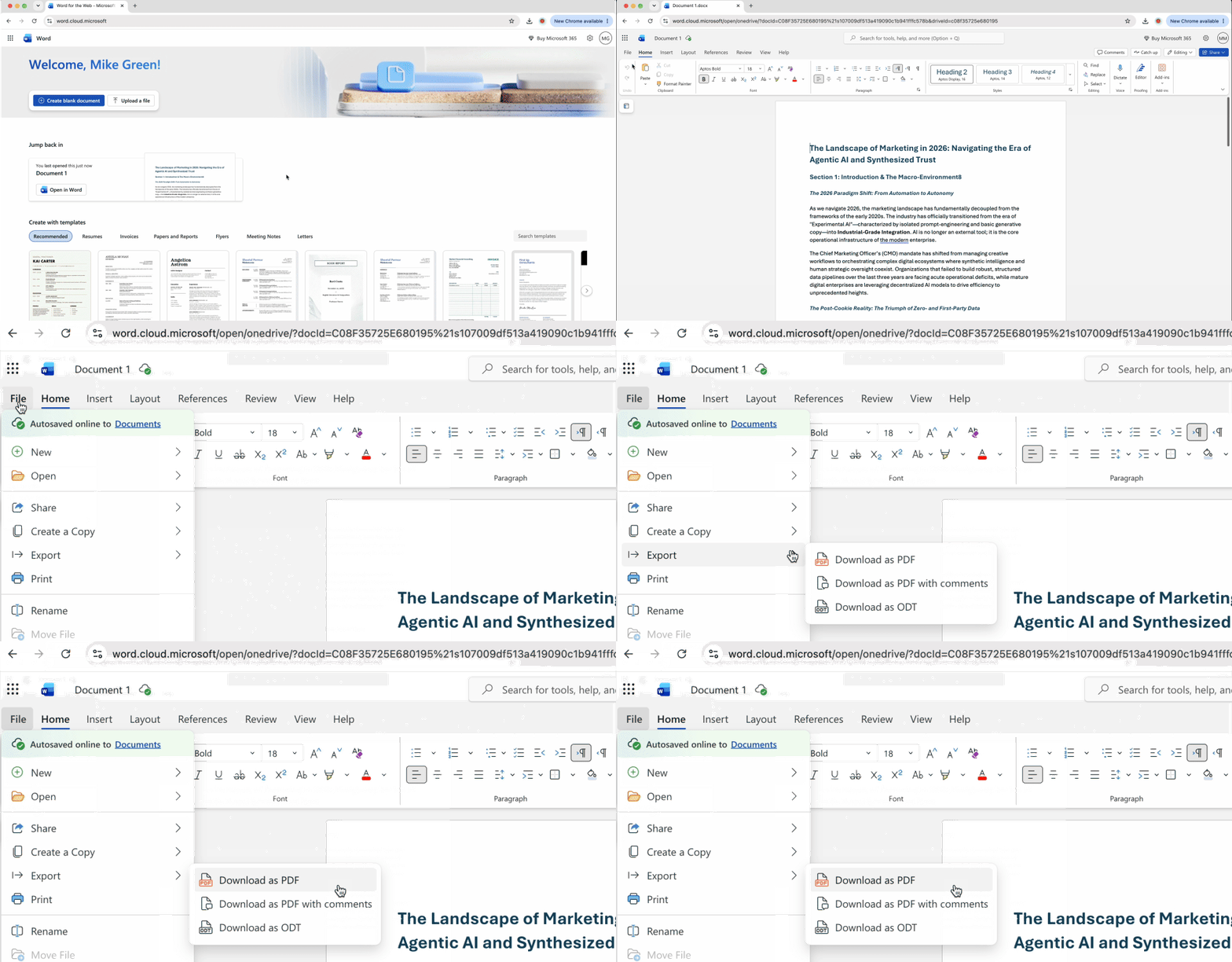
Microsoft's cloud-based Word editor at Office.com provides another reliable path to embed fonts in PDF files without desktop software. The web version automatically handles font embedding during its server-side PDF conversion, meeting archival standards that ensure long-term document accessibility.
- Upload your Word document to OneDrive or open it directly in Office.com.
- Launch the document in Word for the Web (the browser editor, not the desktop app).
- Navigate to File in the top menu bar.
- Select Save As, then choose Download as PDF from the format options.
- Microsoft's cloud servers process the conversion and deliver a PDF/A-compliant file with all fonts embedded.
This approach particularly benefits users creating professional reports, academic papers, and business correspondence where formatting integrity matters. The PDF/A (Archive) standard that Word for the Web follows requires font embedding as part of its specification, designed for documents needing decades-long accessibility. Unlike browser printing which handles already-formatted content, this method converts native Word documents while preserving advanced formatting features like tracked changes metadata and complex table structures.
You'll need a Microsoft account to access Office.com, but no Office 365 subscription is required for the web editor's PDF export function.
Troubleshooting: When PDF fonts refuse to embed
Despite following proper procedures, some fonts block embedding due to licensing restrictions their creators built into the font files. Understanding why this happens and knowing workarounds separates frustration from solutions.
Why some fonts need a license to embed
Commercial font designers can set embedding permissions in the font file's metadata. Roughly 40% of premium fonts carry "preview and print" flags that allow on-screen display and paper printing but prohibit redistribution inside PDFs. When you attempt to embed fonts in PDF files protected by these flags, the conversion either fails with an error message ("Font [Name] could not be embedded due to licensing restrictions") or silently substitutes a similar typeface.
Corporate brand fonts and high-end typefaces purchased for specific projects most commonly carry these restrictions. Check your Document Properties inspection: any font listed as "(Not Embedded)" likely has licensing barriers preventing the methods above from working.
Workaround 1: Flatten a PDF to lock fonts in place
Converting your PDF pages into high-resolution images preserves the visual appearance of protected fonts while eliminating the embedded font requirement entirely. Since images don't contain text objects, there's no font to embed. Web-based flattening tools exist that perform this conversion without software installation.
Use flattening for final distribution copies where recipients only need to view or print the document, not edit it. The trade-off: file sizes increase significantly (typically 500KB to 5MB added), and text becomes non-searchable since it's now part of a picture rather than live text objects.
Workaround 2: Convert text to outlines to preserve font appearance
Professional designers and publishers facing licensed font restrictions use a technique called "outlining" or "creating outlines from text." This process converts each character into a vector shape (a collection of mathematical paths defining the letter's appearance) rather than keeping it as a text object linked to a font file.
Outlining works because shapes aren't fonts. A vector path describing the curve of a lowercase "a" doesn't require the Helvetica font file to display; it's simply a geometric object that looks identical on every device. Print shops and publishers prefer outlined text for critical projects because it eliminates any possibility of font substitution, licensing conflicts, or missing typefaces derailing a print run.
Specialized web-based vector tools and some design platforms offer text-to-outline conversion. The process is irreversible (outlined text can't be edited as normal text afterward), so only apply it to your final, proofread version before sending to a print service or publishing the document.
This technique positions you at the professional tier where graphic designers and book publishers operate. For posters, marketing materials, magazines, or any project requiring absolute print accuracy regardless of font licensing, outlining provides a fail-safe solution.
PDF font embedding methods compared
All three ways to embed fonts in PDF files work entirely in browsers or web apps, removing cost and installation barriers.
| Method |
Best for... |
Requires install? |
| Chrome/Edge Print to PDF |
Quick web-to-PDF tasks, simple documents |
No |
| Word for Web (Office.com) |
Professional documents, PDF/A compliance |
No |
| Text-to-Outline Conversion |
Restricted/licensed fonts, professional printing |
No |
Choose browser printing for everyday documents and web page captures. Turn to Word for the Web when you need archival-grade PDFs that meet formal standards. Reserve outlining for projects with stubborn licensed fonts or commercial printing requirements where zero margin for error exists.

 Published Jun 19, 2026
  8 min
8 min  46 views