2. Best for full editing: Convert your PDF to Word
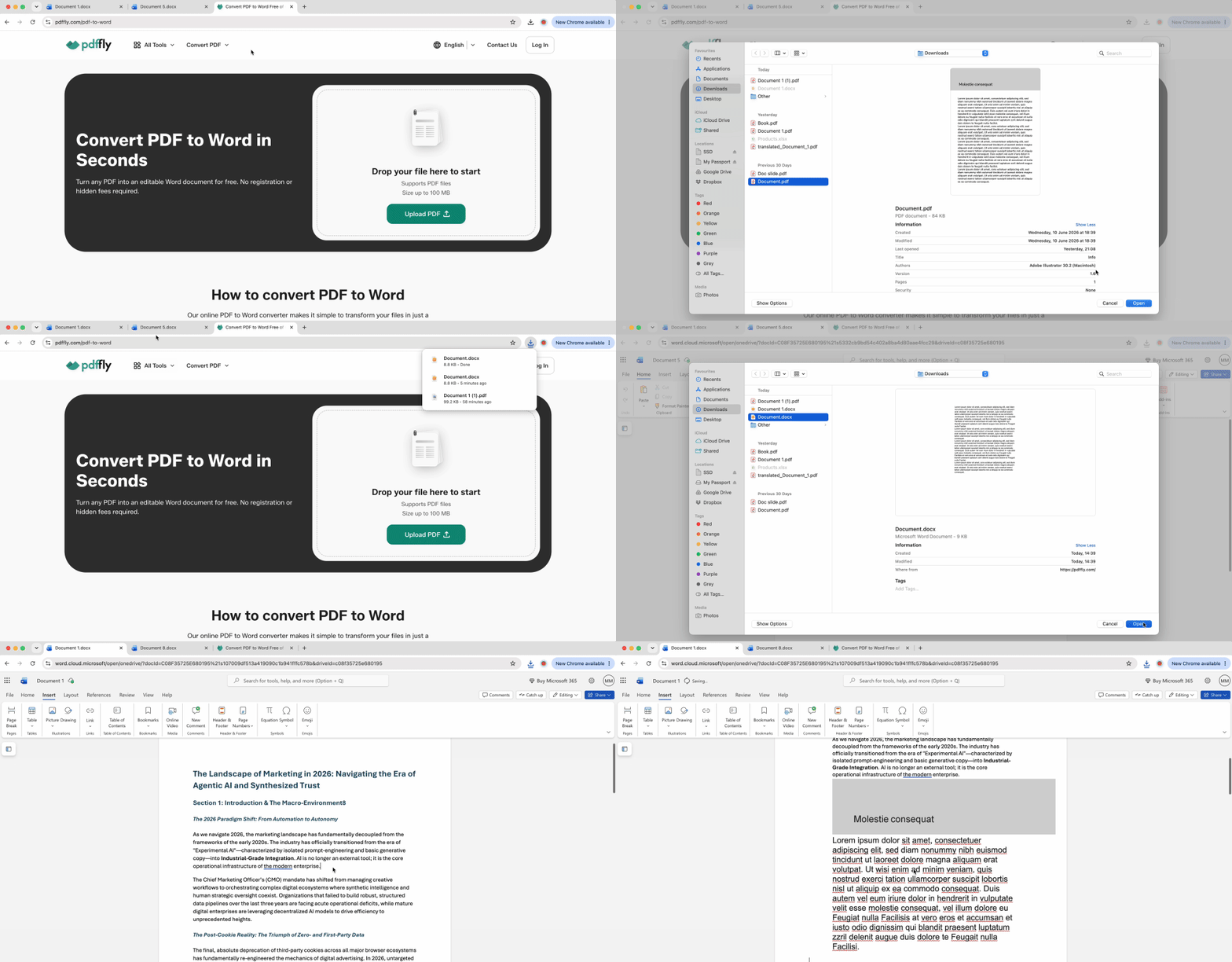
When you need every page with full text editability, converting your PDF into a Word doc beats embedding. This approach breaks the PDF container and transforms your PDF into Word's native format, giving you full control.
- Navigate to the PDF to Word converter.
- Upload your PDF file to the platform.
- Wait for the conversion process to complete automatically.
- Download the resulting Word document to your device.
- Open both the converted file and your target document.
- Select the content you need from the converted file and copy it.
- Paste the content into your target document where you want it to appear.
This method gives you complete control over multi-page documents. Tables maintain their structure, text remains editable, and you can integrate content seamlessly rather than displaying it as a separate embedded object. The conversion preserves formatting while making every element modifiable.
Best use cases include academic papers with multi-page appendices, business reports requiring data from PDF sources, and any scenario where you need to edit or reformat the PDF content after bringing it into Word.
3. Best for preserving exact layout: Insert a PDF as an image in your Word document
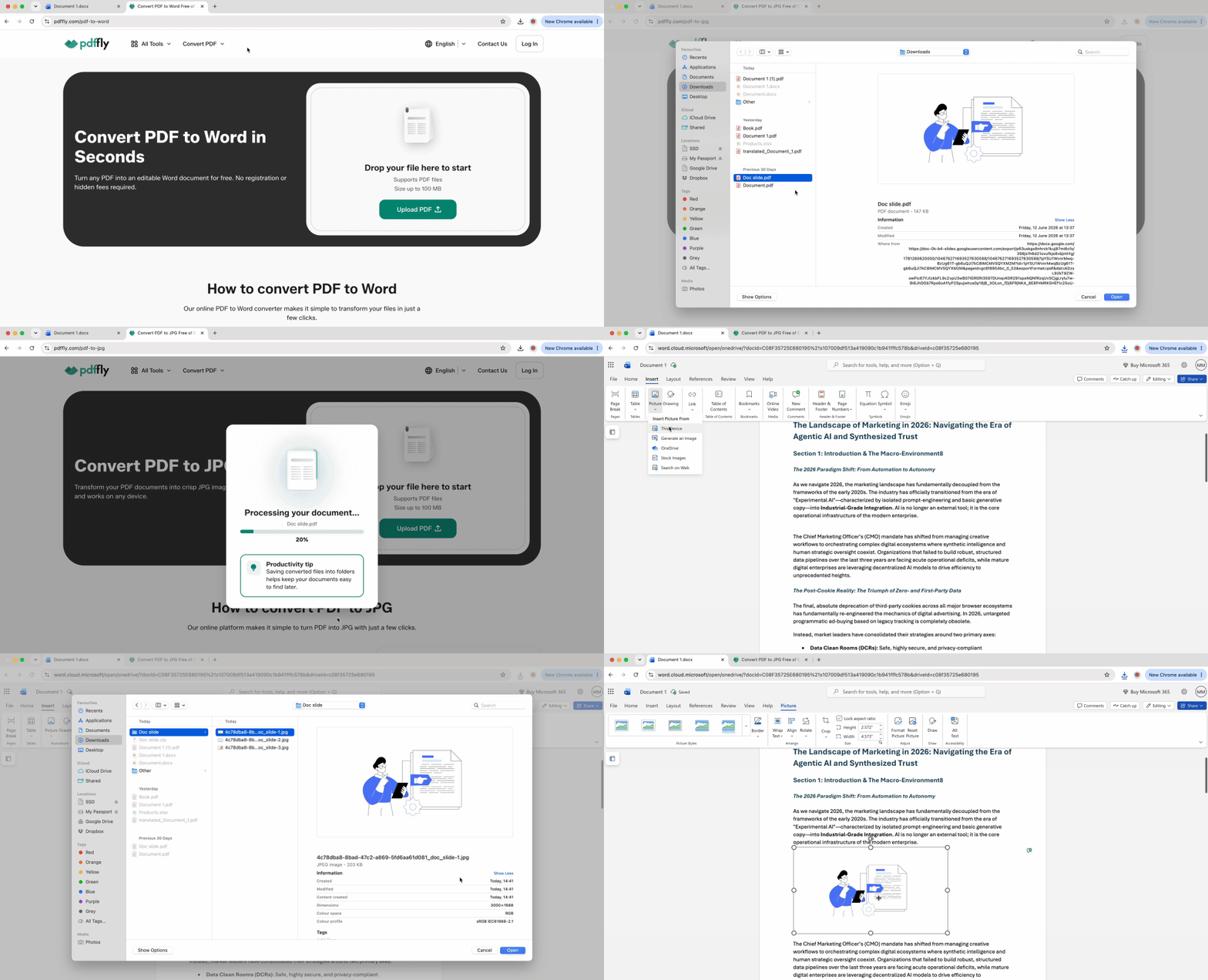
When layout fidelity matters more than text editability — signed contracts, branded materials, design mockups — converting each page to a high-quality image prevents the font shifts and spacing changes that plague editable conversions.
- Go to the PDF to JPG converter.
- Upload the PDF you need to add to your Word document.
- Download the resulting JPG files (one per page) to your computer.
- Open your Word document and position the cursor at the insertion point.
- Click Insert, then Pictures, then This Device and select the first image.
- Repeat the insertion process for each subsequent page in order.
- Adjust image sizing by right-clicking, selecting Size and Position, and setting consistent dimensions.
Each PDF page becomes a separate image file, which you insert sequentially to create a seamless multi-page appearance. The content becomes non-editable, but the visual output maintains quality close to the original PDF.
This method works for legal documents with signature blocks, marketing materials with precise branding, and forms where spacing must remain exact.
4. Best for specific sections: Copy and paste PDF content into Word
For capturing a single chart, paragraph, or diagram from a larger PDF, screenshots offer the fastest path from source to Word document.
Windows:
- Press Win + Shift + S to activate Snipping Tool.
- Select the PDF area you want to capture by dragging your cursor.
- Open your Word document and press Ctrl + V to paste.
Mac:
- Press Cmd + Shift + 4 to activate the screenshot tool.
- Drag to select the desired PDF section.
- Open your Word document and press Cmd + V to paste.
This method excels at grabbing reference snippets — a specific data table, a single quote with context, or a diagram from a technical manual. The resolution depends on your screen display, which means it won't match dedicated conversion quality for full-page reproduction.
5. Best for dynamic references: Embed a linked PDF in your Word document
When your source PDF updates frequently, linking places the PDF into a Word document as a live reference rather than a static copy.
Here's how to embed a linked PDF in your Word document:
- Open your Word document and click Insert, then Object.
- Choose Create from File and browse to your PDF location.
- Check the Link to file checkbox before clicking OK.
- Optionally, check Display as icon to show a clickable reference instead of a page preview.
- Customize the icon label by right-clicking and selecting Edit if needed.
Word treats the PDF as a linked object. It updates automatically in your Word file whenever the source file changes — ideal for appendices in collaborative environments or version-controlled reference materials. The critical limitation: if the original PDF moves to a different folder or gets deleted, the link breaks and your Word document shows an error.
This works for team projects where multiple people update shared reference files, or for documents that cite living data sources.
Preparing your PDF for insertion into a Word document
Many insertion failures stem from PDF characteristics that block standard methods. Addressing these obstacles before you attempt to add PDF to Word document saves repeated failed attempts.
Is the PDF locked? Use an unlocker
Password-protected or permission-restricted PDFs refuse to insert, convert, or display properly in Word. If you receive an error when trying Insert Object or conversion fails silently, security restrictions are the likely culprit.
- Go to the Unlock PDF tool.
- Upload the protected PDF file.
- Download the unlocked version.
- Proceed with your preferred insertion method from the unlocked file.
Only unlock PDFs you have legal rights to access. Once restrictions are removed, all five methods become available — the unlocked file converts cleanly, embeds without errors, and allows text selection for screenshots.
Translating a PDF before inserting it into Word
International source documents in foreign languages present a different preparation challenge. Rather than inserting content your readers can't understand, preprocessing makes the material accessible.
- Open our PDF Translator.
- Upload the foreign-language PDF.
- Select your target language and process the translation.
- Download the translated version.
- Convert the translated PDF to Word for easy content integration.
This workflow maintains formatting while making academic citations, international business documents, and multilingual reports usable in your target language. The translated content then flows smoothly into your Word document through Method 2's conversion approach.
Why your inserted PDF looks blurry or oversized in Word
Poor visual quality after insertion is the most common complaint. Two adjustments eliminate pixelation and sizing problems.
How to adjust Word's image compression settings
- Click File, then Options, then Advanced.
- Scroll to Image Size and Quality.
- Uncheck Compress images in file for maximum quality retention.
- Set Default resolution to High fidelity (330 ppi).
Word's default 220 ppi compression causes the blur most users experience. High-quality settings preserve clarity, especially for text-heavy PDF pages converted to images.
Our converter maintains the original DPI from your source file, unlike screenshot methods that capture at screen resolution (typically 96-120 ppi). Starting with a high-quality image file means Word has more pixel data to work with, even after any compression you choose to apply.
How to fix oversized inserts
- Right-click the inserted image or object.
- Select Size and Position from the context menu.
- Check Lock aspect ratio to prevent distortion.
- Enter your desired width (height adjusts automatically).
- Set Wrap Text to In Line with Text for consistent document flow.
If file size becomes an issue with multiple inserts, use the PDF Compressor on your source files before conversion or insertion — smaller input files yield smaller Word documents without sacrificing visual quality.
Extract specific PDF pages and insert them into Word
Most users approach this task as file manipulation: move the entire PDF into Word and deal with consequences. Smart content curation produces leaner, more focused documents.
The traditional desktop-first method downloads PDFs, inserts complete files, and creates bloated Word documents filled with irrelevant pages. The web-first workflow extracts intelligence, not just files.
Here’s a cleaner three-step way to extract specific PDF pages and add them to Word:
- Identify what you actually need. Review the PDF and determine which specific sections, pages, or data points belong in your Word document. A 50-page research PDF might contribute three relevant pages to your report.
- Prepare strategically. If the source is in a foreign language, translate those three pages. If it's locked, unlock it. If it's a 20MB scan, convert only the necessary pages to reduce processing time.
- Insert precisely using the matched method. Convert text-heavy sections to Word for editability. Insert design pages as images for layout preservation. Use Insert Object for single-page quick references.
This positions PDFFly as an intelligence hub that prepares data for Word, rather than a simple file converter. Your final document stays focused and manageable because you excluded unnecessary content before insertion. Instead of a 50-page embedded PDF that readers must navigate, you provide three integrated pages with a citation to the full source.
Comparison: Which way to insert a PDF into Word
| Your goal |
Best method |
Why this works |
| Quick single-page preview |
Insert Object (Method 1) |
Native Word feature, no conversion needed |
| Edit multi-page text/tables |
Convert to Word (Method 2) |
Full text control, all pages accessible |
| Preserve exact visual layout |
Convert to image (Method 3) |
Prevents font shifts, maintains quality |
| Grab one specific section |
Screenshot (Method 4) |
Fastest for small snippets |
| Link dynamic reference |
Hybrid link method (Method 5) |
Updates automatically with source changes |
| Source is password-protected |
Unlock first, then convert |
Removes restrictions blocking other methods |
| Document in foreign language |
Translate, then insert |
Makes content usable in your report |
Most scenarios benefit from combining methods — there's rarely one universal way to put a PDF into Word. Convert text-heavy appendix pages to Word for editability, insert a signed signature page as an image to preserve authenticity, and use Insert Object for a single-page certificate that needs no editing. Match the technique to each specific piece of content rather than forcing one method across all materials.

 Published Jun 19, 2026
  10 min
  65 views