Method 2: Insert a PDF into a PowerPoint presentation as an image
When you need to add PDFs to PowerPoint as visual elements, whether it's charts, diagrams, or infographics, the Screenshot feature may seem convenient. In reality, screenshots capture at screen resolution (72–96 DPI), which pixelates badly on projector displays.
PowerPoint's native screenshot workflow:
- Click Insert > Screenshot > Screen Clipping.
- Select the PDF area you want to capture.
- The image appears on your slide.
The problem: what looks sharp on your laptop becomes blurry on a conference room screen. Professional presenters convert the PDF to a high-resolution image first, then insert that file.
The Pro Tip: Use a PDF to JPG converter instead of manual screenshots. The process preserves source resolution (150–300 DPI), ensuring clarity even on large displays. Upload your PDF, download the JPG file, then click Insert > Pictures in PowerPoint. Select the downloaded JPG and place it on your slide. The quality difference is immediate. Converted images maintain professional resolution, avoiding the compression artifacts screenshots introduce. When you insert PDFs into PowerPoint as images for visual impact, this method delivers presentation-grade results.
Method 3: Convert PDF to PowerPoint to make it fully editable
Embedding a PDF keeps it static. Converting transforms PDF pages into editable PowerPoint slides, letting you modify text, recolor shapes, and rearrange elements.
This approach makes sense when the PDF already contains slide-style content — presentation decks saved as PDFs, pitch materials, training modules. Direct insertion locks that content; conversion unlocks it.
Turn PDFs into PowerPoint using an online converter
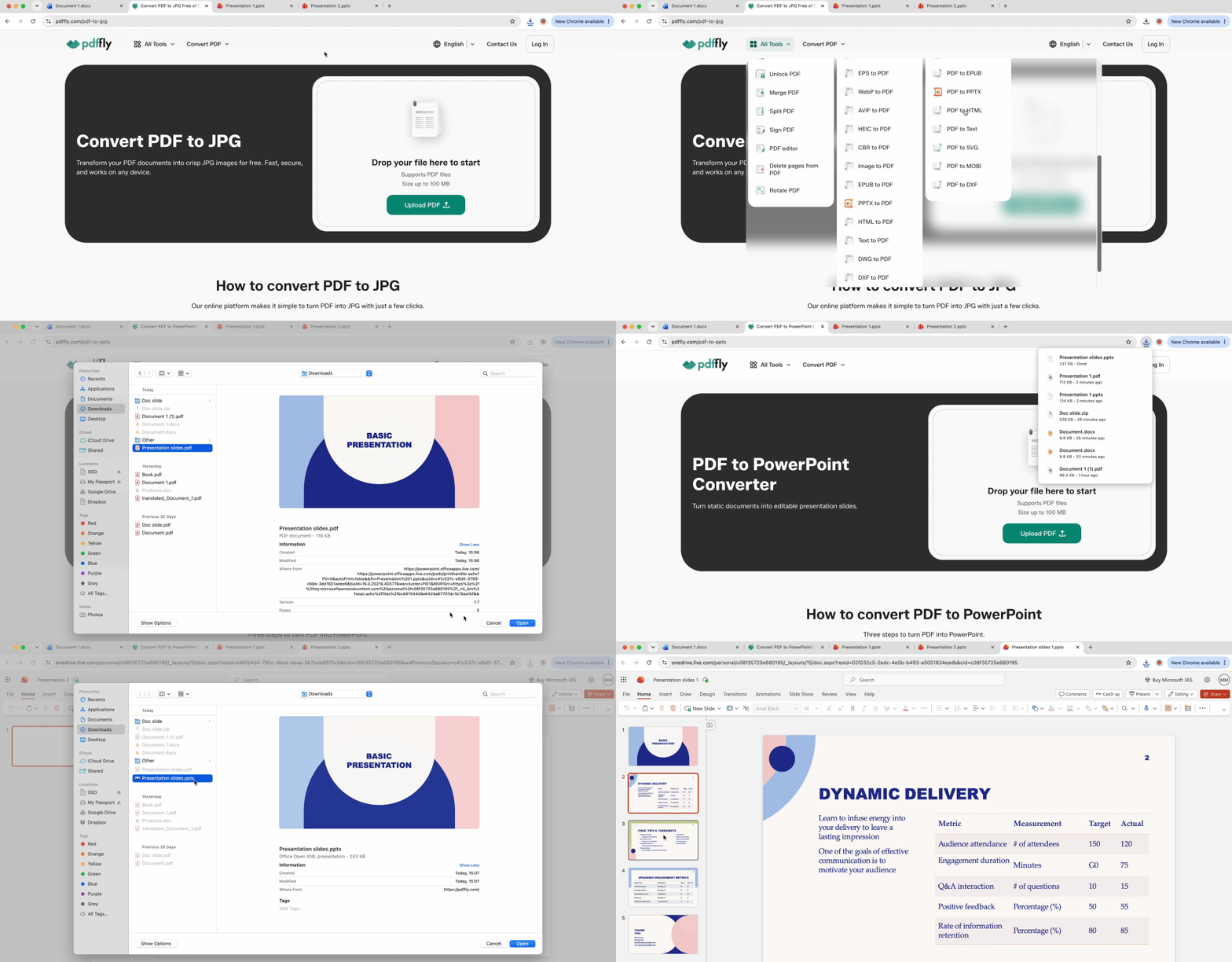
- Upload your PDF to our PDF to PowerPoint converter.
- Wait for the platform to process each page into a native PPTX slide.
- Download the converted file.
- Open it in PowerPoint and edit individual text boxes, images, and shapes.
Only conversion grants full editability. You can change fonts to match your brand guidelines, adjust colors for consistency, or extract specific graphics to repurpose across multiple presentations.
Method 4: Ways to insert a PDF in PowerPoint for the web
PowerPoint Online lacks the Insert Object feature entirely. Cloud-based users face a hard stop when trying to add PDFs to PowerPoint through the browser interface. Two workarounds restore functionality.
Copy PDF text directly into PPT slides
Open the PDF in a viewer that supports text selection. Select the content you need, copy it, and paste directly into a PowerPoint Online text box. This works for text-heavy PDFs where you only need excerpts — meeting notes, report summaries, quote blocks. The layout won't transfer, but the content does.
Insert a PDF file as an image in PowerPoint
For visual content — charts, branded headers, infographics — convert the PDF to JPG using the method from section 2. Upload the JPG to OneDrive or your cloud storage, then insert it into PowerPoint Online via Insert > Pictures > This Device. The image maintains visual fidelity, and the file remains accessible across devices.
Both workarounds bypass the Object insertion limitation. Web users can insert PDFs into PowerPoint presentations indirectly, choosing text extraction or image conversion based on content type.
Fixing aspect ratio and slide layout
Standard PDF pages don't fit PowerPoint slides. Understanding why prevents layout disasters.
The Design Gap: A4 and Letter PDFs use an 8.5×11-inch portrait format, creating a 1.29:1 aspect ratio. PowerPoint's standard 16:9 widescreen slides measure 10×5.625 inches, a 1.78:1 landscape ratio. That's a 38% dimensional mismatch.
Forcing a full vertical page onto a horizontal slide produces two outcomes: massive whitespace that looks amateurish, or shrunken content so small audiences can't read it. Neither works.
Crop your PDF using the rule of thirds
Don't cram the entire page. Crop strategically to the content that matters.
Identify the key section — usually the top-left third or the center area containing your main data. Use the Screenshot tool or an image editor to capture only that portion. Position the cropped content on the left two-thirds of your slide, leaving the right third for bullet points, annotations, or your branding.
This approach respects presentation flow instead of document flow. A financial report example: show the summary table and chart, not the full page with headers, footers, and legal disclaimers. The slide becomes scannable, professional, and designed for a projector, not a printer.
When you add PDFs to PowerPoint as images, think in thirds. The vertical-to-horizontal transformation requires intentional cropping, not blind scaling. Master this, and your slides look designed rather than imported.
Each insertion method in this guide works best when the PDF itself is optimized for the job. A few tools can close the gaps.
Compress before you embed
Embedding a PDF as an object (Method 1) bundles the entire file inside your .pptx. A 15 MB financial report turns your presentation into a 20 MB email attachment that bounces. Use the Compress PDF tool to shrink the file before embedding — you keep the full document reference without bloating the deck.
Convert when you need editable slides
Method 3 covered PDF-to-PowerPoint conversion, but the quality of the output depends on the converter. If the built-in options produce broken layouts or merge your text boxes, try running the conversion through PDFFly first. The converter preserves table structures and font formatting that generic tools tend to flatten.

 Published Jun 19, 2026
  6 min
6 min  74 views