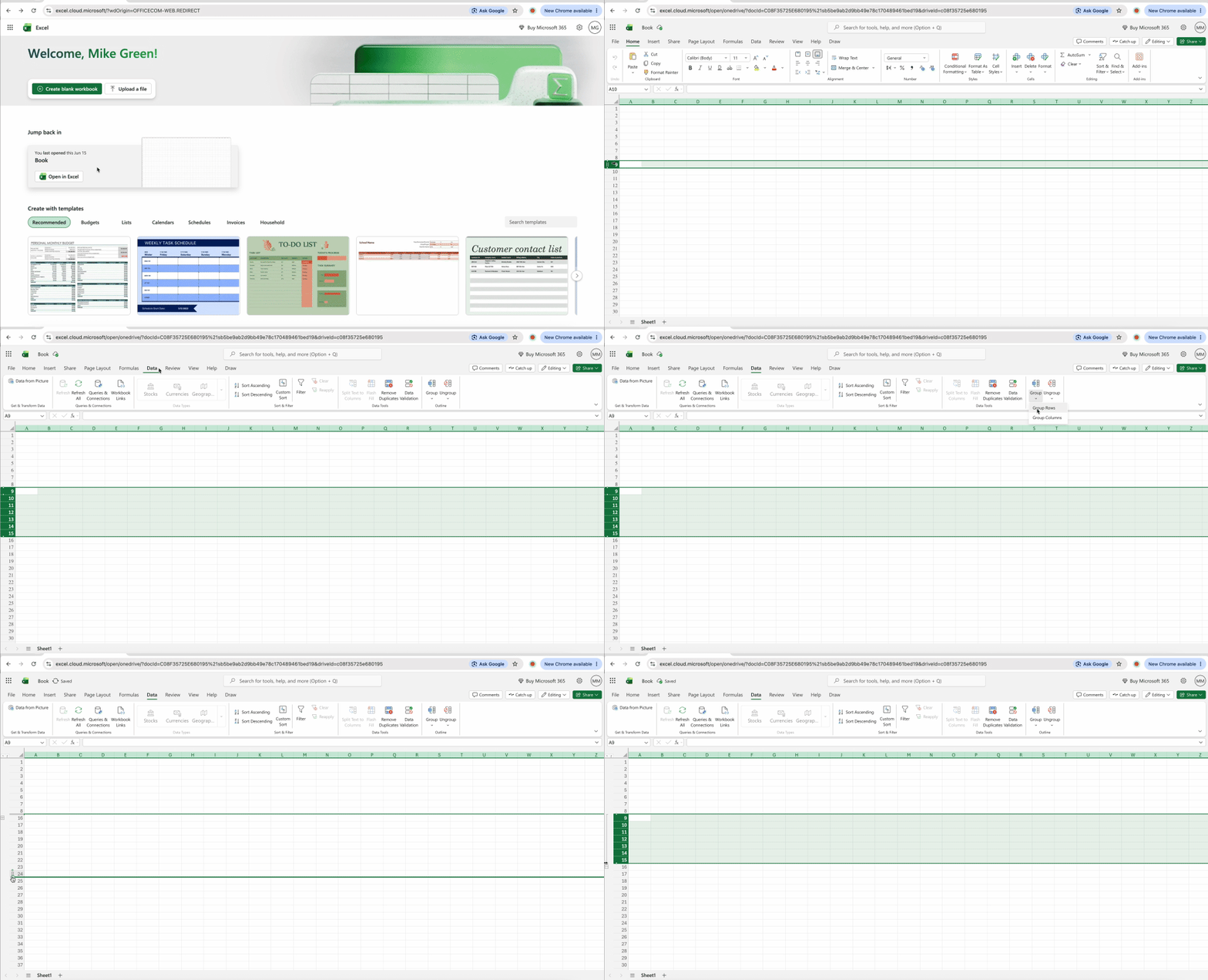
3: Collapse and expand rows dynamically with Pivot Tables
Pivot Tables function as the ultimate collapsible tool because they let you reorganize and regroup data on the fly. Unlike static grouping in Excel, Pivot structures adapt as your analysis needs change.
- Create a Pivot Table from your data (Insert > PivotTable).
- Add fields to rows and values as needed.
- Right-click any item in the Pivot Table.
- Navigate to Expand/Collapse.
- Select "Collapse Entire Field" for complete collapse.
Pivot Tables shine for large datasets requiring frequent reorganization — sales data by region, time-series analysis across quarters, or multi-category reporting where you need to drill down differently for each presentation. The dynamic nature means one structure serves multiple purposes.
Grouping vs. hiding rows: Which one should you use?
Many users confuse grouping with hiding, but these serve fundamentally different purposes. Understanding when to use each approach prevents formula errors and maintains professional presentation standards.
| Feature |
Grouping |
Hiding |
| Purpose |
Organize hierarchical data |
Temporarily remove from view |
| Visual Indicator |
+/- outline buttons |
None (looks deleted) |
| Reversibility |
Click + button |
Right-click > Unhide |
| Formula Impact |
Works with SUBTOTAL |
Can break SUM formulas |
| Professional Use |
Reports, presentations |
Data cleanup, focus work |
The verdict: Hiding removes data from view completely — useful for scratch work, deprecated columns, or information you never want stakeholders to see. Grouping creates an interactive structure that maintains data while controlling visibility.
The formula distinction matters critically. The SUBTOTAL function ignores grouped rows when calculating, maintaining accuracy whether sections are expanded or collapsed. Standard SUM formulas count everything regardless of grouping status, which can produce misleading totals. When building professional reports, SUBTOTAL ensures your numbers stay consistent across different outline levels.
Streamline and simplify your Excel spreadsheet online
Once your spreadsheet is perfectly organized with collapsed rows showing clean summaries, the next challenge emerges: sharing that view without chaos. Raw Excel files create problems — formatting breaks across versions, recipients accidentally expand sections and lose the structure you designed, and confidential detail rows get exposed.
Web-native platforms solve version control issues by eliminating the download-edit-upload cycle entirely. PDFFly works in any browser on any device, requiring no installation or software updates. This makes it easier to group in Excel and convert it for sharing without slowing down your workflow.
Share collapsed Excel spreadsheets with stakeholders
Professional Excel users face a consistent problem: collapsed files are living documents that clients or team members can mess up. A perfectly organized dashboard becomes unusable the moment someone clicks the wrong outline button. The answer lies in freezing your insight at the moment of maximum clarity.
Export collapsed rows to PDF
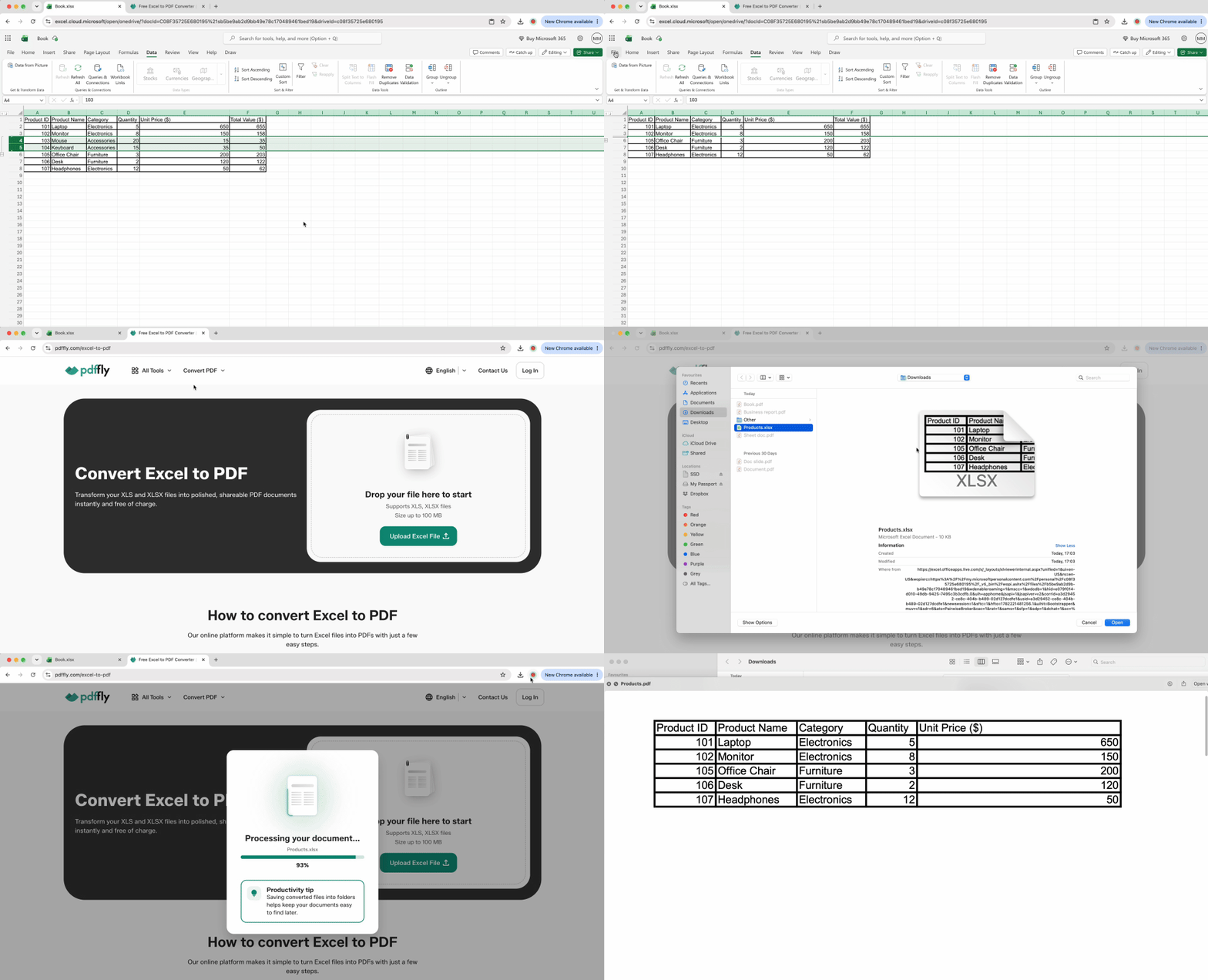
Sharing live Excel files means sharing editable chaos. Recipients using different Excel versions see formatting breaks, accidentally expand all groups while scrolling, and modify structure without realizing it. Converting to PDF locks your exact layout.
- Collapse all unnecessary detail rows in your spreadsheet to show only summary data.
- Visit the online Excel to PDF converter.
- Upload your file. The tool captures the current collapsed state exactly as displayed.
- Download the PDF with your view preserved.
Recipients see your professional summary without the ability to accidentally expand or modify anything. File sizes often shrink because hidden detail doesn't bloat the PDF. Monthly reports where executives need summary rows — not 500 transaction lines — become concise and focused. This makes collapsed rows useful not only for organizing data in Excel, but also for sharing cleaner reports.
Summarize hidden data with AI
Collapsed rows solve one problem but create another: stakeholders see "Q1 Marketing: $47K" without understanding what comprises that number. Expanding defeats the purpose of collapsing. The online PDF summarizer bridges this gap by analyzing your exported PDF and generating narrative context.
- Take your collapsed Excel PDF from the previous step.
- Run it through the summarizer.
- Receive a text summary explaining trends and patterns in the collapsed data.
For example, 500 expense rows collapsed into a single marketing total might produce: "Primary spend on digital ads (62%), conferences (24%), and collateral (14%), with Q1 showing 18% increase over Q4 driven by product launch campaigns." Executives get the why behind summary numbers without sifting through detail rows. Context without clutter is the professional standard.
Translate your workbook for global teams
International reporting creates a localization challenge — collapsed category labels need translation for global teams to understand the structure. Building separate language versions manually multiplies your workload.
- Export your collapsed Excel as PDF.
- Use the PDF translator for your target language.
- Download the translated PDF with collapse structure intact.
Headers and summary rows become readable globally while maintaining the organizational logic. Multinational teams receive "T1 Ingresos por Región" instead of "Q1 Revenue by Region," but the underlying hierarchy stays consistent. One source file generates multiple language exports with zero manual re-translation.
"The Frozen Insight" strategy: While other platforms keep users trapped in the Excel sandbox, this workflow extracts insights and locks them as professional deliverables. Collapsed Excel represents analysis in progress — a living document prone to breaking. A summarized, translated PDF of that collapsed view becomes a report. This positions your data process as complete: Excel for analysis, collapse for clarity, PDF for distribution, summarization for context, translation for reach.
Collapse rows in Excel: Methods compared
Bookmark this table — these five techniques separate Excel novices from professionals in 2026.
| Goal |
Tool/Shortcut |
| Quick group |
Alt + Shift + Right Arrow |
| Quick ungroup |
Alt + Shift + Left Arrow |
| Mass summary |
Auto-Outline (Data > Outline) |
| Total clean-up |
Pivot Table |
| Client sharing |
Excel to PDF + Summarizer |

 Published Jun 19, 2026
  7 min
7 min  58 views