 Published Jun 19, 2026
  7 min
7 min  64 views
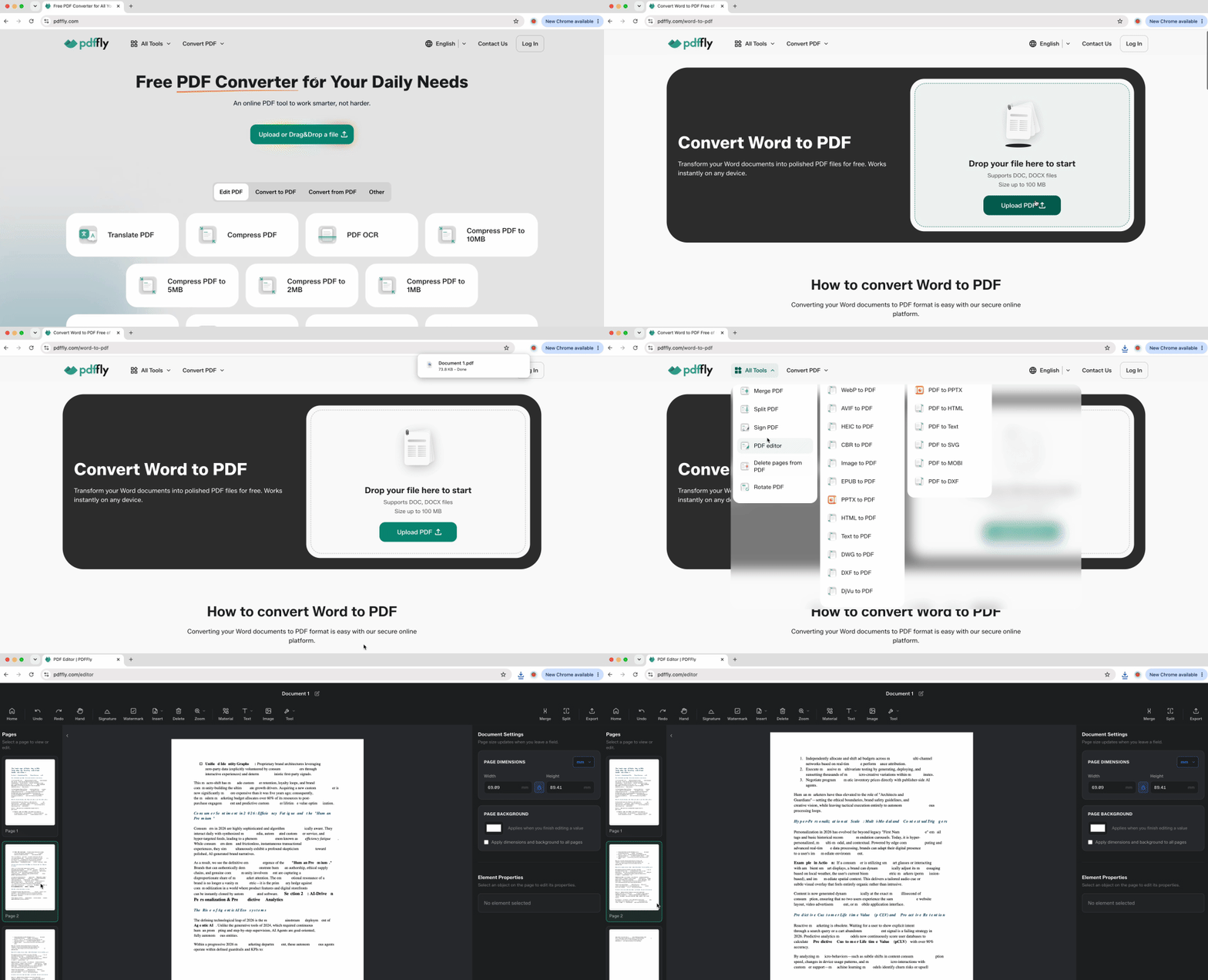
Word doesn't recognize pages as separate objects you can grab and delete. Instead, it treats your document as one continuous text flow — pages appear only when content and formatting combine to push text onto new sheets. Removing a page means eliminating every piece of content or formatting code forcing that page to exist. Some methods work brilliantly for content-filled pages; others tackle the blank sheets that refuse to disappear. This guide covers every method, from Word's built-in commands to online tools like PDFFly.
The quick fix: Select and delete a page in Word
Understanding how Word thinks about pages saves hours of frustration. The software builds pages dynamically based on text volume, paragraph marks, and break commands rather than as discrete units you can select and trash. This distinction matters because content-filled pages require different tactics than blank ones. A page with visible text responds to selection and deletion. A stubborn blank page typically contains invisible formatting characters that survive repeated Delete key presses.
Using the Navigation Pane
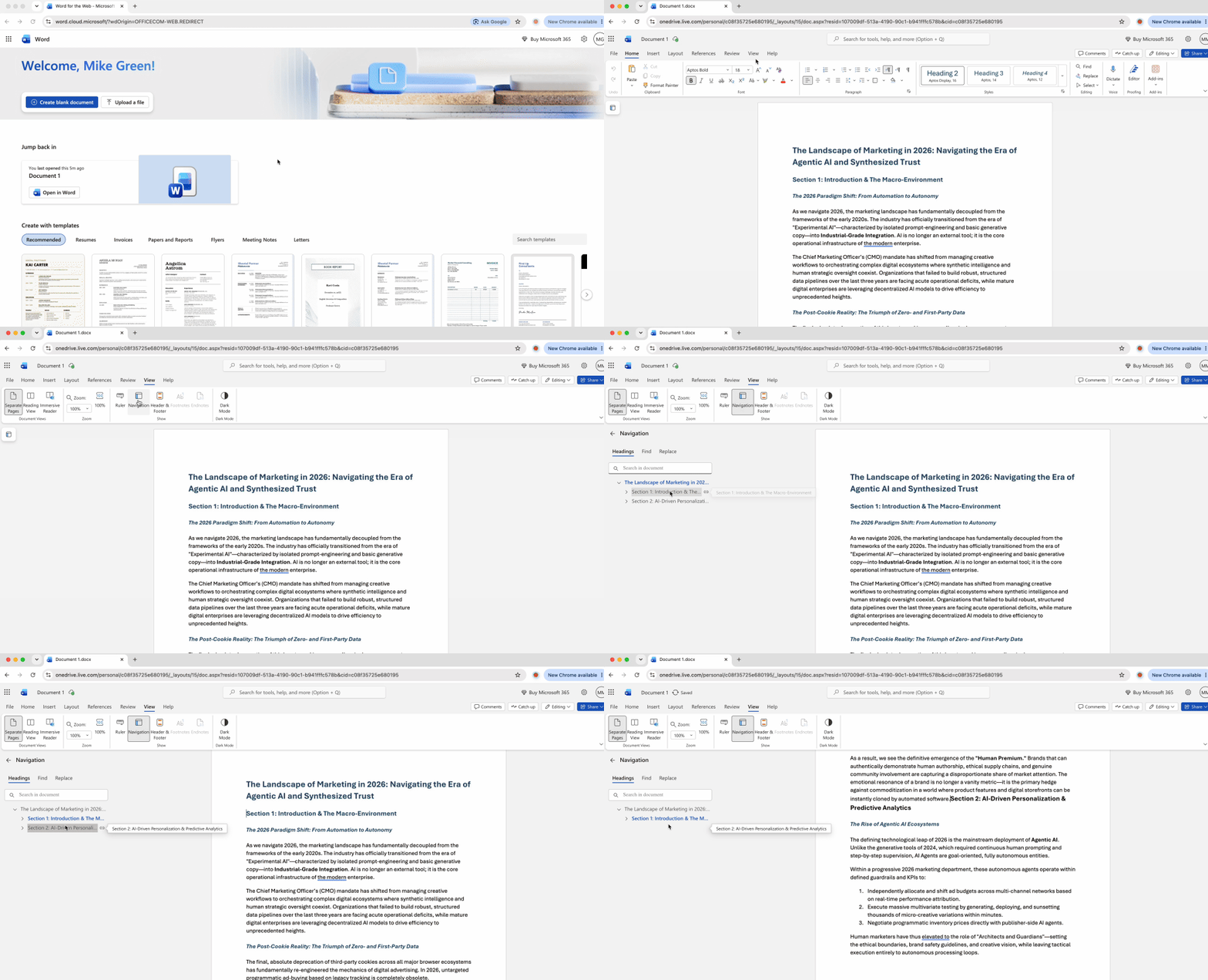
- Click View in the ribbon, then check the Navigation Pane box
- Select the Pages tab on the left sidebar
- Click the thumbnail of the page you want removed. Microsoft Word highlights all content on that page
- Press Delete or Backspace to remove everything at once
This method excels when you need to delete pages in Microsoft Word located in the middle of long documents where scrolling becomes tedious. The visual thumbnail interface lets you confirm you're targeting the right content before deletion.
Using the Go To command
- Press Ctrl + G (or Cmd + Option + G on Mac) to open the Go To dialog
- Type
\pagein the "Enter page number" field, then press Enter. Word selects the entire current page - Hit the Delete key to remove all selected content
This keyboard-driven approach bypasses scrolling entirely. You can type a specific page number before \page to jump directly to that location. This is useful when you know exactly which page needs removal but don't want to navigate manually through dozens of pages.
Remove a blank page in Word by revealing formatting marks
Blank pages that won't respond to the Delete key usually contain hidden formatting characters. These invisible codes control spacing, breaks, and layout without displaying on screen. Revealing them transforms mysterious blank sheets into visible, deletable objects.
Press Ctrl + Shift + 8 on Windows or Cmd + 8 on Mac to toggle formatting marks. You'll see paragraph marks (¶), dots for spaces, and arrows for tabs. More importantly, you'll spot page breaks and section breaks — the usual culprits behind stubborn pages. Look for a dotted line labeled "Page Break" or "Section Break (Next Page)" where your blank page begins.
How to delete page breaks and section breaks in your document
- With formatting marks visible, locate the "Page Break" text on its dotted line
- Click immediately before this text or highlight it by dragging your cursor across it
- Press Delete to remove the break — the content below flows back up to fill the gap
Section breaks require more care. A "Section Break (Next Page)" creates a new page, while "Section Break (Continuous)" doesn't. Click immediately before the break text and press Delete. Be aware that removing section breaks can merge headers, footers, and page numbering from previously independent sections.