How to Do Superscript and Subscript in Google Docs

Format dates, formulas, citations, and equations without breaking your writing flow.

Published Sep 16, 2026 4 min 56 views
How to Do Superscript and Subscript in Google Docs

Dates, citations, H2O formulas, and math equations often need characters above or below the normal line. In Google Docs, either format takes less than two seconds with the right web shortcut.

Action Windows / ChromeOS Mac
Superscript Ctrl + . (period) Cmd + . (period)
Subscript Ctrl + , (comma) Cmd + , (comma)

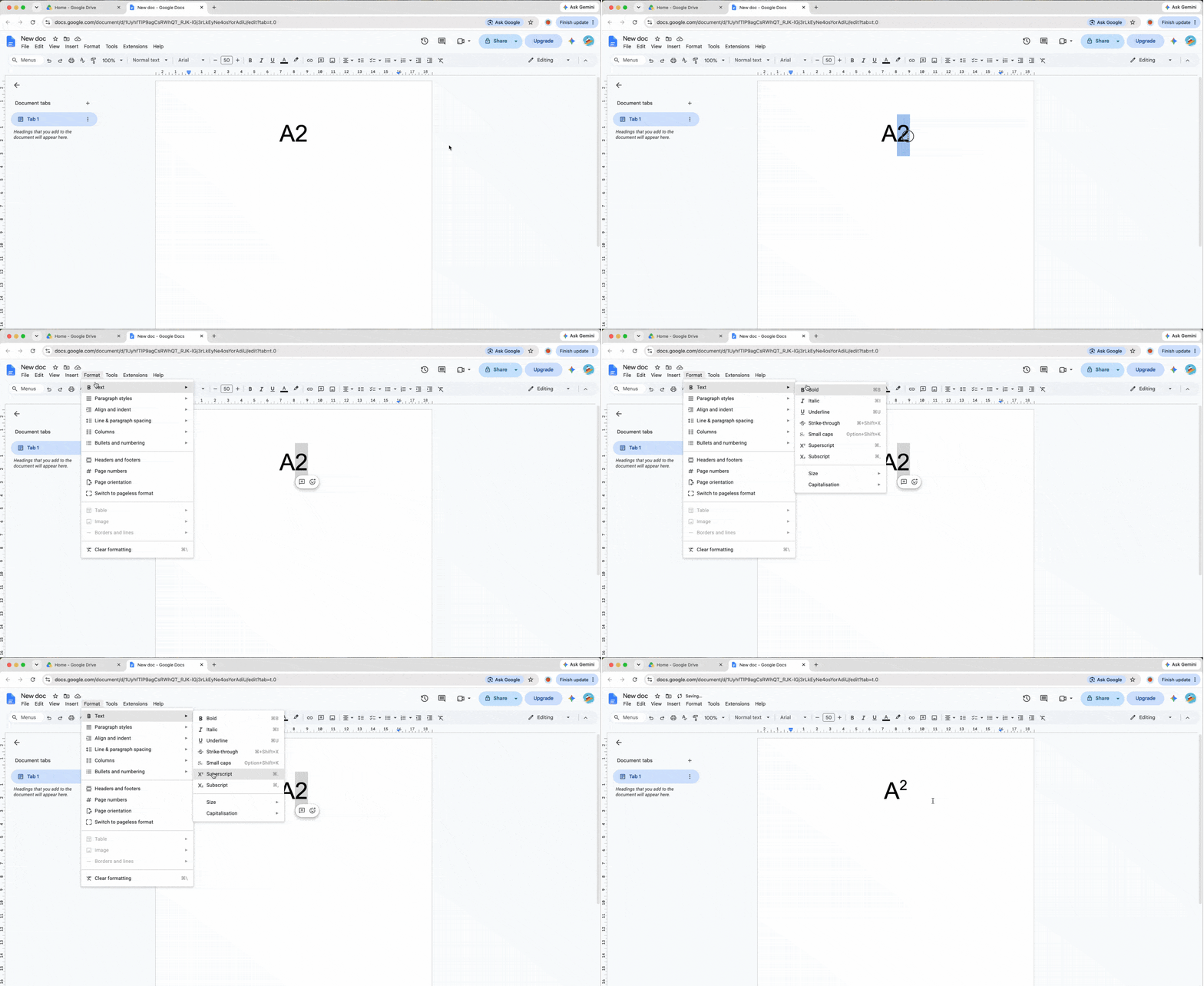
How to superscript in Google Docs

How to superscript in Google Docs

Superscript is smaller text positioned above the normal text line. It is useful for an exponent, a footnote marker, or an ordinal such as 1st.

Using keyboard shortcuts

Place the cursor where the raised text should begin, then press Ctrl + . on Windows or ChromeOS. On Mac, press Cmd + . Type the superscript text, then repeat the shortcut to toggle the formatting off and return to the normal line. This is the fastest shortcut for superscript in Google Docs.

Using the Format menu

To add a superscript to existing text, follow this path: Highlight text > Format > Text > Superscript. The selected character moves above the baseline while surrounding text stays unchanged.

How to subscript in Google Docs

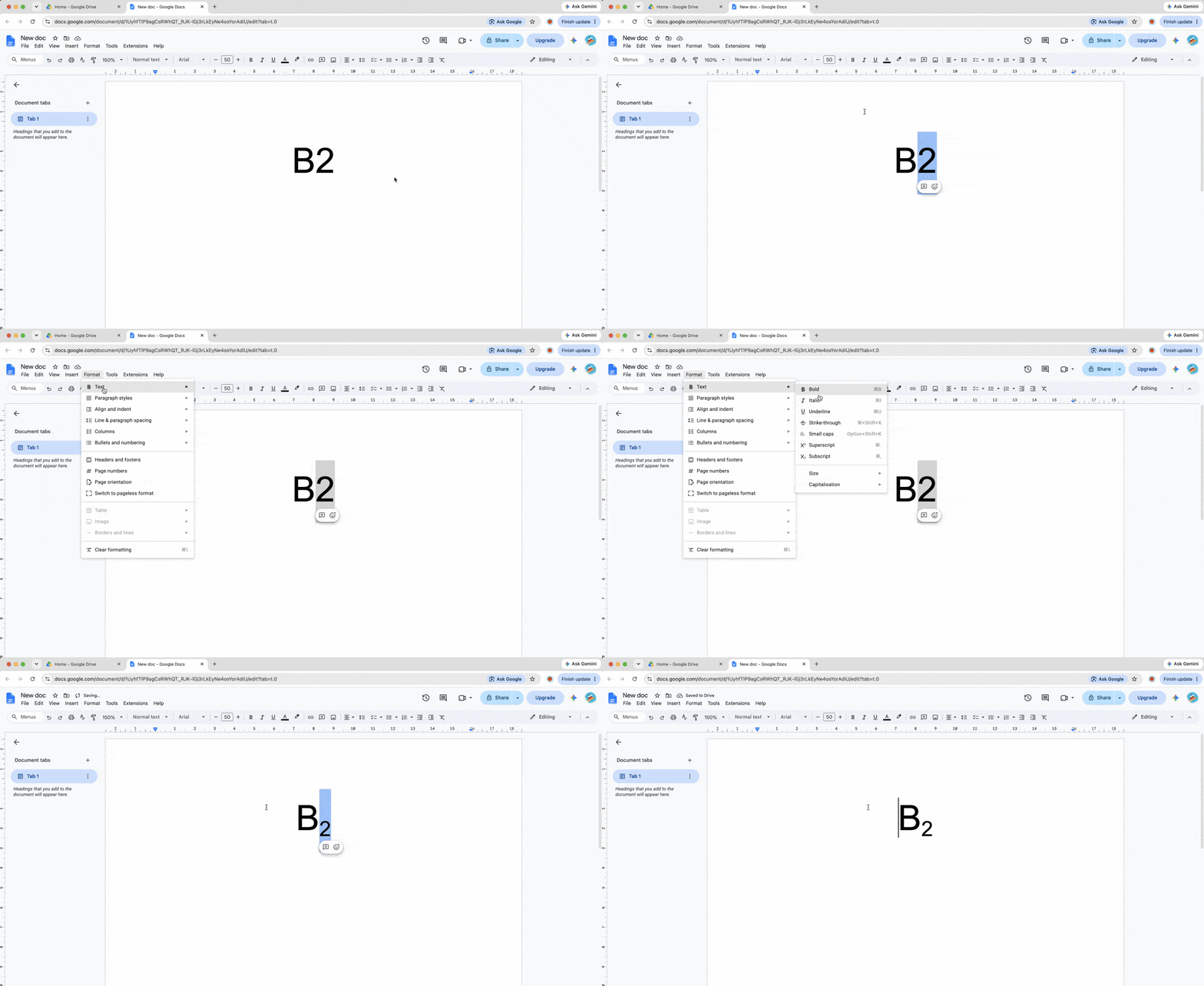
How to subscript in Google Docs

Subscript is smaller text placed below the normal line. Scientific notation uses it in a chemical formula, while mathematical writing uses it to distinguish variables.

Using keyboard shortcuts

Press Ctrl + , on Windows or ChromeOS, or Cmd + , on Mac. Type the lowered characters, then press the same keyboard shortcut again to continue with standard text.

Using the Format menu

For subscript in Google Docs using the menu, choose Highlight text > Format > Text > Subscript. This method is helpful when the formula is already written and only selected characters need changing.

Inserting special characters for symbols

A degree sign (°), trademark (™), or footnote dagger (†) does not require you to format normal text. Click Insert > Special characters, then search for “superscript” or “subscript.” Select a preformatted symbol to place it at the cursor. This route is especially useful when the character is not on your keyboard.

Using the equation editor for advanced math

Standard superscript or subscript formatting is not always the best choice for algebra and physics. Click Insert > Equation to open the blue equation box. Type a letter, then press Shift + 6 to create a caret (^); Google Docs moves the next entry into the exponent position. Press Shift + - to create an underscore (_) and move the next entry down to a subscript position.

Conclusion

These web shortcuts save menu clicks in academic papers, scientific documents, and financial reports. Use the period for raised text, the comma for lowered text, and the equation editor when mathematical structure matters. Repeat a shortcut to return to standard formatting and keep writing.

Related articles