 Published Sep 16, 2026
  18 min
  54 views
Choosing a presentation app no longer means choosing cloud convenience or desktop power. Google Slides and Microsoft PowerPoint run in a web browser, support co-authoring, save files to cloud storage, and offer AI assistance on eligible plans. The real difference is workflow: Slides prioritizes sharing and a restrained interface, while PowerPoint combines web editing with deep desktop production.
So, is Google Slides the same as PowerPoint? No. Both presentation tools arrange text, images, charts, video, and speaker notes on slides, but they make different trade-offs. Google Slides is built around a cloud-first document that several people can edit quickly. PowerPoint is part of the Microsoft Office suite and scales from straightforward browser editing to detailed offline production.
For a class project or fast-moving team deck, sharing friction may matter most. For a keynote, financial report, or controlled corporate presentation template, animation and layout precision may carry more weight. The right answer can also be hybrid: collaborate in Slides, then finish and test the presentation in PowerPoint before delivery.
Google Slides vs. PowerPoint: Feature-by-feature comparison
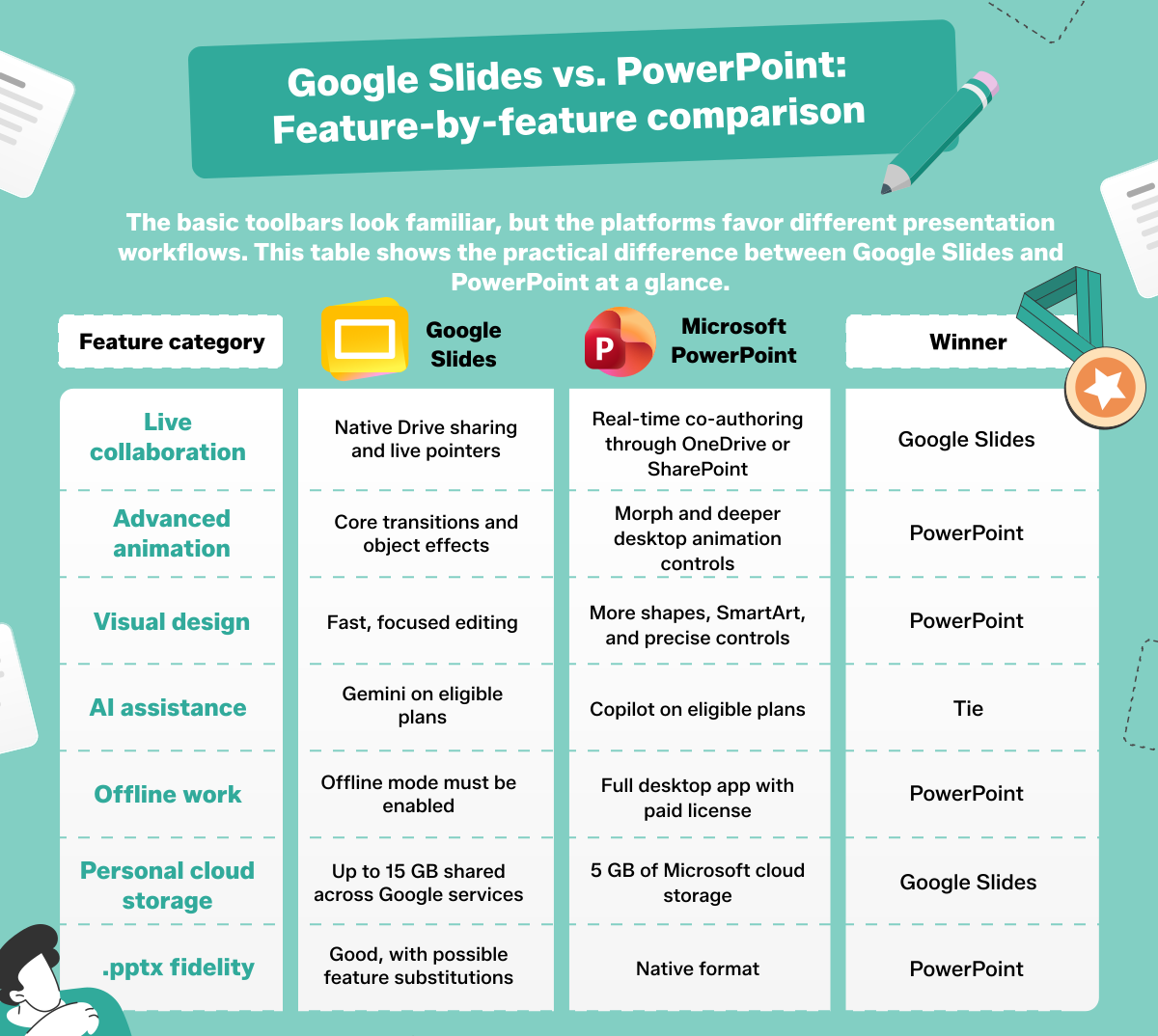
The basic toolbars look familiar, but the platforms favor different presentation workflows. This table shows the practical difference between Google Slides and PowerPoint at a glance.
| Feature category | Google Slides | Microsoft PowerPoint | Winner |
|---|---|---|---|
| Live collaboration | Native Drive sharing and live pointers | Real-time co-authoring through OneDrive or SharePoint | Google Slides |
| Advanced animation | Core transitions and object effects | Morph and deeper desktop animation controls | PowerPoint |
| Visual design | Fast, focused editing | More shapes, SmartArt, and precise controls | PowerPoint |
| AI assistance | Gemini on eligible plans | Copilot on eligible plans | Tie |
| Offline work | Offline mode must be enabled | Full desktop app with paid license | PowerPoint |
| Personal cloud storage | Up to 15 GB shared across Google services | 5 GB of Microsoft cloud storage | |
| .pptx fidelity | Good, with possible feature substitutions | Native format | PowerPoint |
Real-time collaboration and cloud sharing
Google Slides has the smoother default sharing flow, but PowerPoint does not lack real-time editing. In both products, collaboration depends on a cloud-stored file, suitable permissions, and collaborators opening a supported version. Your organization's sharing policies can limit external access on either platform.
Google Slides collaboration workflow
Google Slides is built for the web and saves changes automatically in Google Drive. The Share dialog lets an owner invite specific people or distribute a link, then assign Viewer, Commenter, or Editor access. Editors can work simultaneously, and live pointers show where collaborators are moving on a slide. Comments support replies, assignments, and resolution.
Version history records edits by time and contributor, so you can inspect an earlier state and restore it when necessary. This integration with Google services makes Slides ideal when a team already uses Gmail, Google Meet, Drive, and other Google Workspace apps. You can also enable offline mode in Google Drive before losing connectivity, but recent files must synchronize while you are online first.
Microsoft PowerPoint web & cloud collaboration
Save a modern .pptx file to OneDrive or SharePoint, select Share, and PowerPoint enables co-authoring when several people open it. Presence indicators and colored flags show who is in the presentation and where they are editing. The Comments pane supports threaded replies, @mentions, resolution, and tasks, while revision highlighting helps identify recent changes.
PowerPoint for the web saves edits automatically. Collaborators can follow the same link into the online version of PowerPoint or a compatible desktop release, depending on their account and settings. This workflow is especially useful for organizations already managing files and permissions through Microsoft 365. Legacy .ppt files should be converted to .pptx because Microsoft limits co-authoring to modern file formats.
Design capabilities, animations, and visual polish
Both web interfaces cover themes, layouts, images, shapes, charts, and transitions. PowerPoint offers greater production depth overall, especially when its web and desktop versions are treated as one workflow. Slides keeps routine creation faster by exposing fewer controls.
Visual design & transitions in PowerPoint
PowerPoint provides Morph for fluid movement between related slides, plus SmartArt, custom vector shapes, alignment tools, and Designer, also presented as Design Suggestions, for automated layout ideas. The desktop app adds fine-grained animation timing, motion paths, triggers, and stronger typography controls. PowerPoint templates can also encode approved layouts, colors, fonts, and placeholders for consistent business decks.
Platform differences matter. PowerPoint for the web can create and play Morph in supported Microsoft 365 files, but its SmartArt and animation controls are more limited than the desktop app. It can play 3D content inserted on Windows or Mac, yet it cannot currently insert animated 3D graphics itself. Use PowerPoint desktop when complex sequences or exact brand production is central to the job.
Visual design capabilities in Google Slides
Google Slides offers a smaller theme library, editable master layouts, diagrams, basic vector drawing, stock images, video, and practical transitions. Google Slides templates are easy to duplicate and share, while the streamlined user interface reduces the time spent searching through advanced controls. That focus works well for reports, lessons, sales updates, and simple presentations that must be revised quickly.
Slides supports object animations, but it lacks PowerPoint desktop's animation triggers, motion-path depth, and Morph transition. Multimedia is still straightforward: you can place video from YouTube or Google Drive, and this guide explains how to add audio to Google Slides. For elaborate visual storytelling, test the full slide show rather than assuming every imported effect will behave identically.