
How to Loop a PowerPoint Presentation Automatically

Keep a deck moving from the first slide to the last, then start again without touching the controls.

Published Sep 16, 2026 6 min 76 views
How to Loop a PowerPoint Presentation Automatically

A looping deck can support a lobby screen, event booth, or hands-free product display. The settings below apply to current desktop versions of Microsoft PowerPoint, including Microsoft 365. You will configure a standard loop, restrict casual navigation with kiosk mode, and repeat a selected group through a custom slide show, with separate controls for media.

Imagine an unattended trade show display reaching its last slide, then going blank. When you loop a PowerPoint presentation, it restarts continuously. This tutorial covers standard, kiosk, and custom-show playback. You can also insert PDF into PowerPoint or compare Google Slides with a PowerPoint presentation before building the deck.

Method 1: How to set up a standard looping presentation

A PowerPoint automatic slideshow loop needs two settings: automatic slide advance and continuous playback.

Step 1: Set automatic slide timings

  1. Open the deck and select the Transitions tab.
  2. Find Advance Slide in the Timing group.
  3. Clear On Mouse Click, select After, and enter a display time such as 00:05.00.
  4. Select Apply to All for uniform slide timings.

Adjust individual timings if dense slides need longer. The slides advance automatically instead of waiting for input.

Step 2: Enable continuous looping

  1. Select Slide Show > Set Up Slide Show.
  2. Under Show options, select Loop continuously until 'Esc'.
  3. Keep Presented by a speaker (full screen) selected and click OK.
  4. Press F5, or select From Beginning, to test the slide show in PowerPoint.

The PowerPoint loop slideshow should return from the last slide to the first slide. Press Esc to stop it.

Method 2: How to loop a PowerPoint at a trade show (kiosk mode)
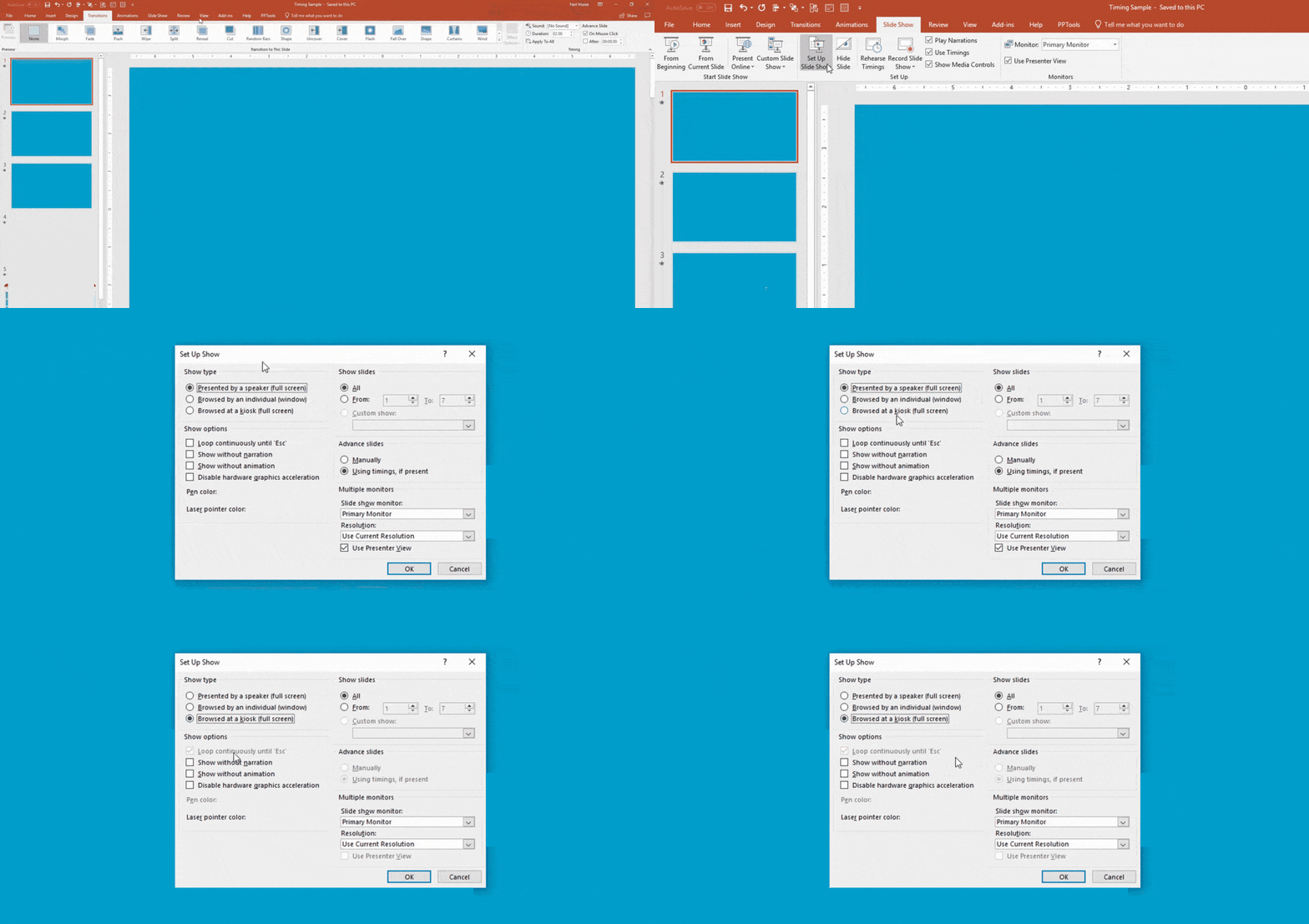
How to loop a PowerPoint at a trade show (kiosk mode)

Standard playback lets viewers click or press the spacebar to skip content. Kiosk mode limits this on unattended screens.

Preventing viewer interruption with kiosk settings

  1. Open Slide Show > Set Up Slide Show.
  2. Select Browsed at a kiosk (full screen) under Show type.
  3. Confirm that PowerPoint automatically selects Loop continuously until 'Esc', then click OK.

Kiosk mode disables ordinary clicks on blank slide space, but Esc still exits; it is not an operating-system lock. For navigation, add hyperlinked controls through Insert > Shapes > Action Buttons.


How to loop a specific subset of slides (custom slide show)

You can loop slides in PowerPoint without removing content from a 25-slide master deck. For example, include only slides 5 through 12.

Step 1: Create a custom slide show

  1. Select Slide Show > Custom Slide Show > Custom Shows.
  2. Click New and name the show, such as “Lobby Loop.”
  3. Select the required slides, click Add, and click OK.

Step 2: Set the loop to run only the custom show

  1. Select Slide Show > Set Up Slide Show.
  2. Under Show slides, select Custom show and choose your saved show.
  3. Select Loop continuously until 'Esc' and click OK.

The search phrase “repeat slideshow PowerPoint” often describes this exact task: repeat one reusable subset instead of the entire presentation.

How to loop audio or animations in PowerPoint

Deck looping does not repeat every media effect. Configure audio and animations separately.

Continuous background audio

Select the audio icon, open the contextual Playback or Audio Format tab, and choose Play in Background. PowerPoint enables Play Across Slides and Loop until Stopped; verify both options if you want continuous music.

Repeating slide animations

Open the Animation Pane, right-click the effect, choose Effect Options, and open the Timing tab. Set Repeat to Until End of Slide. The animation then repeats only while that slide remains active.

Troubleshooting: Why is my PowerPoint not looping?

If slides do not move, check Transitions > Timing > Advance Slide. Select After, enter a value above 00:00.00, and apply it to the intended slides. On Mouse Click can remain selected alongside After, although clearing it prevents manual advances. If the show reaches the end but does not restart, reopen Set Up Slide Show and confirm the loop option. To stop any loop or kiosk show immediately, press Esc.

Conclusion

Use standard playback for general autoplay, kiosk mode to limit public navigation, and a custom show when a master deck contains extra slides. Test the full cycle before leaving it unattended. For a fixed-layout copy, you can convert PowerPoint to PDF with PDFFly.

Related articles