How to insert audio into Google Slides on desktop
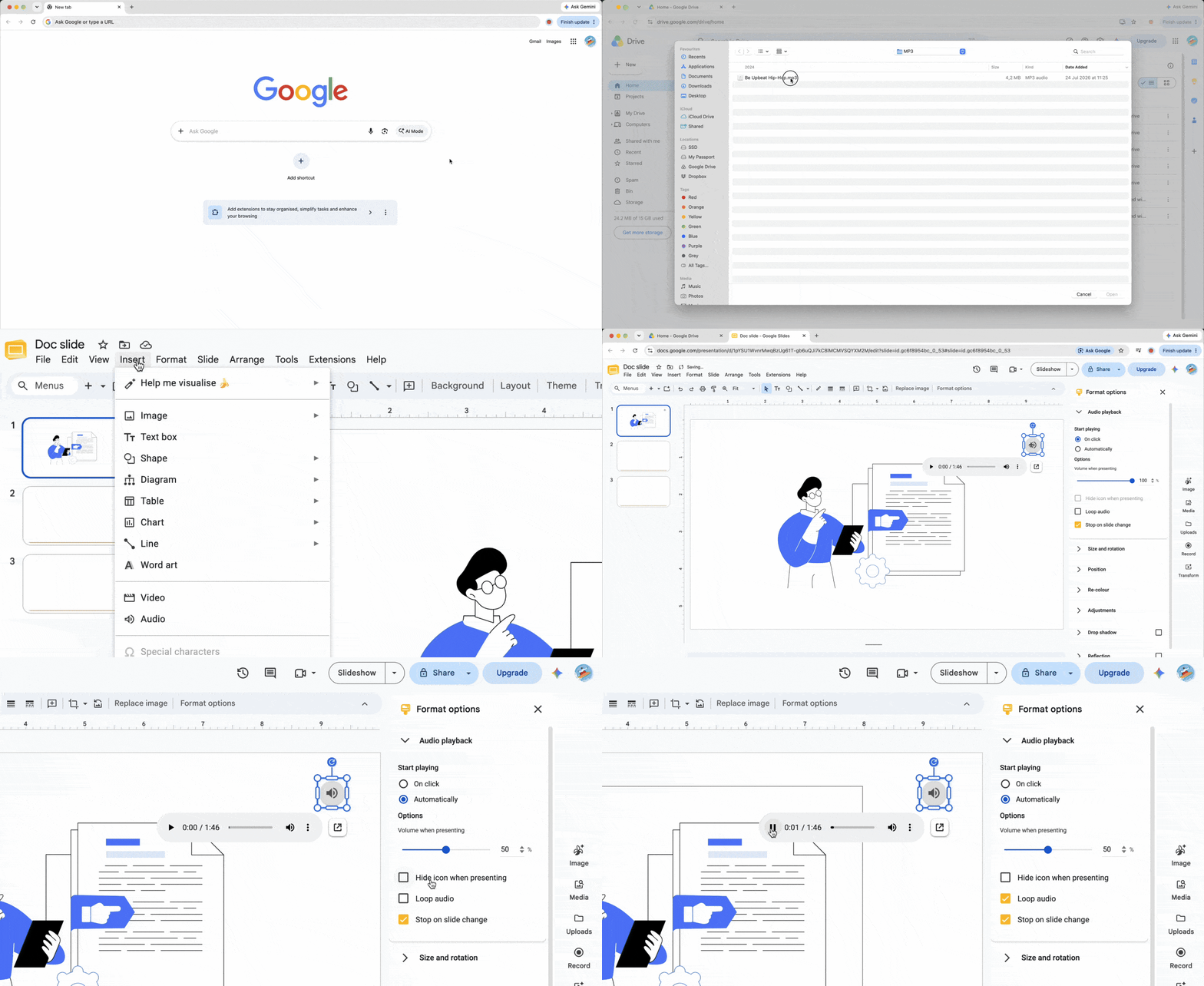
To insert audio into Google Slides, first save the file to Drive; Slides cannot select audio directly from your local hard drive. The presentation references that Drive file.
Step 1: Upload your file to Google Drive
- Open Google Drive on your computer.
- Click New > File upload.
- Select your MP3 or WAV file and wait for the upload to finish.
For voice narration, name each audio recording after its matching slide.
Step 2: Insert the audio into your slide
- Open your presentation and select the slide where you want the sound.
- Choose Insert > Audio from the top menu.
- Select the uploaded file under My Drive or Recent, then click Insert.
A speaker icon will appear on the slide. This same process works when you insert music into Google Slides from Drive.
Click on the audio icon and open Format options. In the Audio playback sidebar, set Start playing to On click or Automatically, then adjust the volume slider. Enable Hide icon when presenting for unobtrusive background music. Turn on Loop audio to repeat the track, and uncheck Stop on slide change when audio should continue across different slides.
The “Drive permissions” trap: Why your audience hears silence
Embedding audio does not automatically give every viewer access to its source, although Google’s access checker may suggest updates. In Drive, right-click the file, choose Share, change General access to Anyone with the link, and keep the role set to Viewer. Otherwise, audio in Google Slides may work for you but stay silent for the audience. Test the shared deck in an incognito window.
The mobile workaround: Adding audio from your phone
The Google Slides app for iOS and Android has no Insert > Audio command. Upload the track in the Drive app and copy its link. In Slides, select text or an image, choose Insert > Link, and paste the URL. This links to the file rather than embedding audio, so the presenter must tap it to play the audio.
Alternative method: Adding music via YouTube embed
For background music or a sound effect, you can embed music in Google Slides from YouTube. Choose Insert > Video, search YouTube, select a video, and click Insert. In Format options, choose Play (automatically). Shrink the player, place it in a corner, and preview the slide; autoplay may still require an initial interaction.
Troubleshooting common Google Slides audio issues
- Insert > Audio is missing: Open Help, search for “Add audio,” and select the matching command. Also confirm that you are editing on a computer, not in the mobile app.
- The file will not play: Check the tab, output device, and volume controls for mute settings. Confirm the Drive permission and format, clear the browser cache, then try an incognito window.
When adding audio to Google Slides, run the deck once with the same browser and equipment you will use live.
Conclusion
Reliable audio for Google Slides starts with preparation: use MP3 or WAV, upload it to Drive, set playback behavior, and grant Viewer access to the people who need it. Test the final presentation as a viewer, not only as its owner. With those checks complete, you can deliver a more engaging, multimedia-rich presentation without avoidable silence.

 Published Sep 16, 2026
  5 min
5 min  43 views