Method 2: Convert PDF to Google Docs via Word
If the direct PDF-to-Docs conversion gives you poor results, converting the PDF to .docx first is another option worth trying. Microsoft Word's .docx format may preserve more of its structure. However, some formatting can still change. Google Docs opens these files natively. Here's the 2-step process:
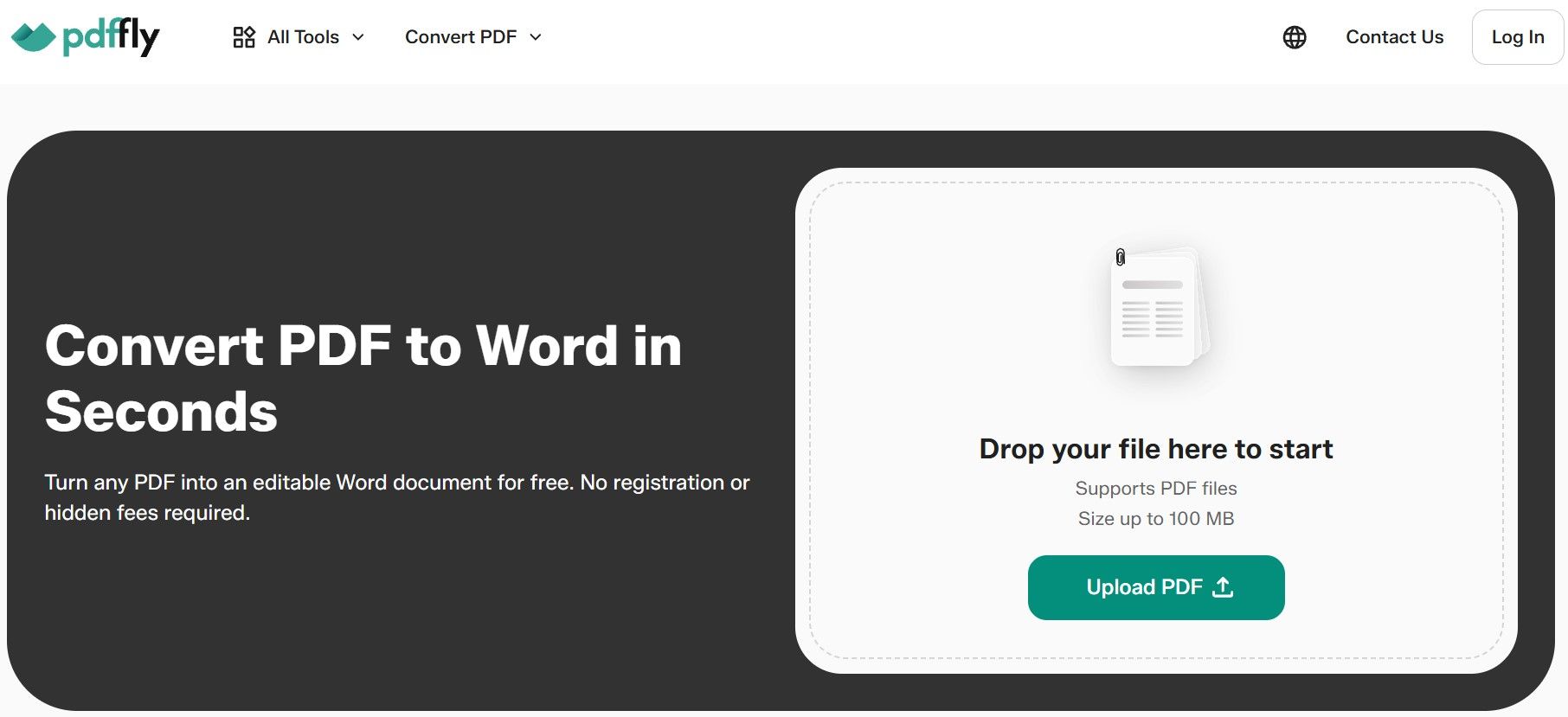
- Convert your PDF to Word with PDFFly
Head to PDFFly and use the free convert your PDF to Word tool. PDFFly is a free online doc converter that turns your PDF files into editable .docx, supporting files up to 100 MB and requiring no registration.
- Upload the .docx to Google Drive and open with Docs
Upload the Microsoft Word file to Google Drive, then right-click → Open with → Google Docs. Because the file is already in an editable doc format, Google Docs may preserve more of its structure. However, some formatting can still change during import.
Pro tip: even with Word as a middleman, heavily designed PDFs – brochures, slide exports, newsletter layouts – won't reflow perfectly into body text. For those, inserting the PDF page as an image may be a better option when preserving the original visual layout matters more than editing the text.
How to Import a PDF into Google Docs
Sometimes you don't need to edit the PDF at all – you just need its content to appear inside a Doc you're working on. There are 2 practical ways to do that, and both are easy to complete.
Insert a PDF as an Image (JPG/PNG)
This is a good option for diagrams, forms, certificates and other visuals where you want to keep the original layout rather than edit the content.
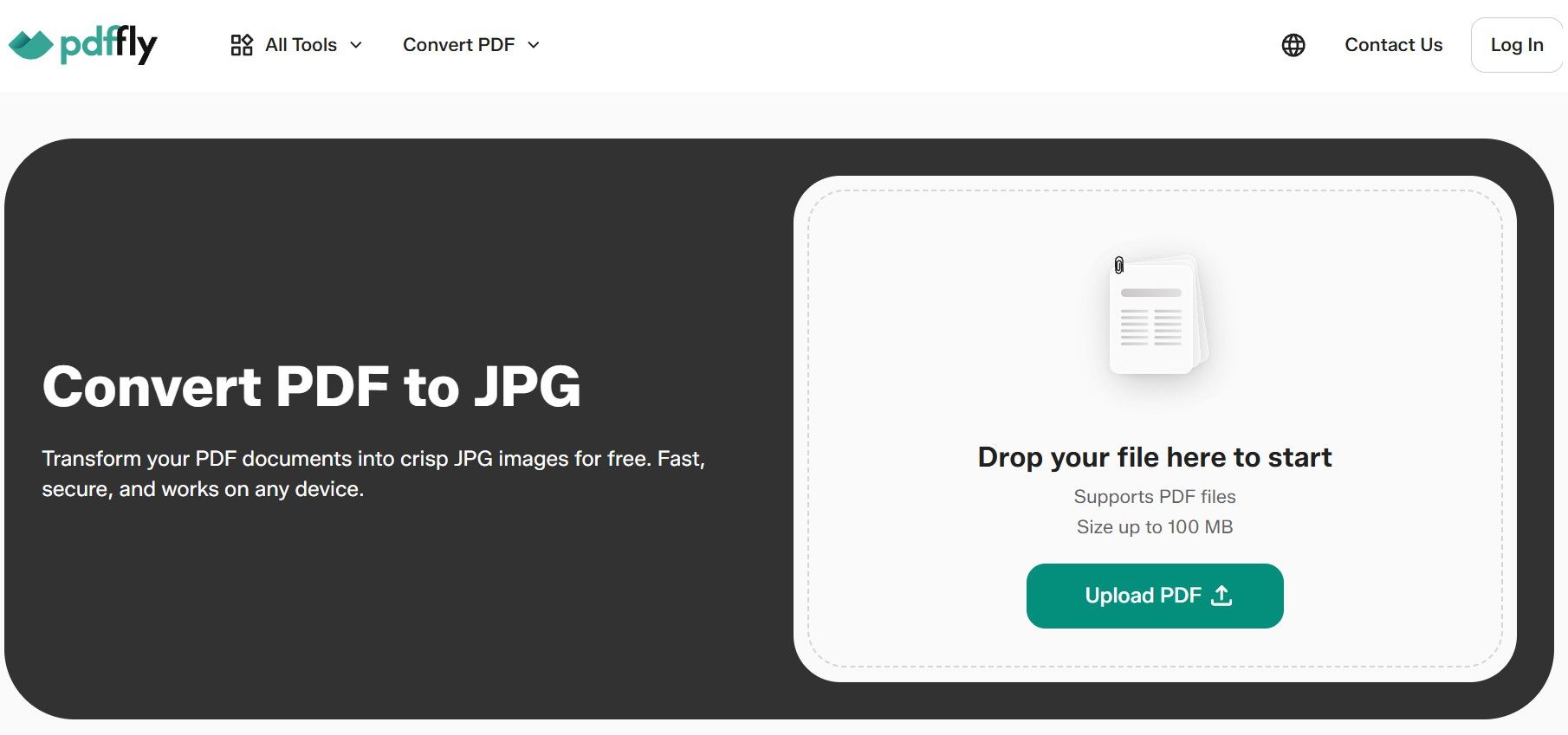
- Convert the PDF page to an image
Use PDFFly's PDF-to-JPG tool to convert the page you need into a JPG image. PDFFly also has a separate PDF-to-PNG converter.
- Insert the image into Google Docs
In your Doc, go to Insert → Image → Upload from computer and select the image you just created. You can then resize and position it just like any other image.
Add a PDF as a Shareable Link or Smart Chip
For a lighter-weight reference – meeting notes, internal briefs – add the file as a Smart chip:
- Upload your PDF to Google Drive
Make sure the PDF is in Google Drive and has a shareable link (right-click → Share → copy link).
- Paste the link into your Doc
Paste the PDF link into your Google Doc. Docs will offer to convert it into a Smart chip – a rich preview that shows the file name and type on hover. Click Tab to accept it.
Smart chips work especially well inside Google Workspace documents where teammates need to collaborate and reference the original PDF without opening it in a new tab.
How to Save a Google Doc as a PDF
Need to turn the finished Docs file back into a PDF? You can do that in a few clicks: File → Download → PDF Document (.pdf). Google generates the Portable Document Format file immediately and downloads it to your computer.
What Else Can PDFFly Do?
PDFFly is a free, browser-based PDF toolkit with no sign-up, desktop app or installation required. It works in Google Chrome and other major browsers across devices. You can use it to merge, compress and edit PDFs, depending on what you need.
- Merge PDFs
Need to bring several files together before uploading them to Drive? Use the merge your PDFs tool to combine them into one file and arrange the pages in the order you want.
- Compress PDF
Need a smaller file? Compress your PDF before sharing it or uploading it to Google Workspace to reduce its file size.
- Sign PDF
Add an electronic signature to a Portable Document Format file directly in your browser – no printing or scanning required.
- Edit PDF documents
Add text and highlights to any PDF page. Perfect for quick edits when you don't need a full conversion to Docs.
Ready to convert, edit, or combine your PDFs? PDFFly works in your browser – try it for free, instant, no sign-up.
Frequently Asked Questions
Can I convert a scanned PDF into an editable Google Doc?
Yes. When you open a PDF in Google Docs via the right-click menu in Drive, Google automatically runs Optical Character Recognition (OCR) on the image and creates an editable Docs file. Accuracy is strong for clean, high-contrast scanned documents but drops noticeably with low-resolution scans or handwritten text – always proofread the output before using it.
PDFFly's own OCR tool also supports documents in multiple languages beyond English, making it useful for international PDF files.
How do I convert multiple PDFs to Google Docs at once?
Google Drive doesn't offer a one-click batch conversion option in its standard interface. For occasional use, the simple approach is to convert PDF files individually with Open with → Google Docs: it's a fast, easy process that takes seconds per file.
For a larger queue of files, the Google Drive API can automate the conversion process. You can also find step-by-step video tutorials on YouTube if you prefer a visual walkthrough: search "batch convert PDF to Google Docs video" for current guides.
How to change a PDF to a Google Doc with password-protected files?
Password-protected PDF files need to be unlocked before Google Docs can convert them. Use a dedicated PDF unlocker tool to remove the password first, then upload the unlocked Portable Document Format file to Drive and open it with Google Docs as normal. If you don't have the password, contact the file owner for an unlocked copy.
How to get a PDF into Google Docs faster without uploading to Drive?
Not with Google's native tools – Drive is the gateway for PDF-to-Docs conversion. However, if you already have a .docx version of your file, you can upload it directly to Google Drive and open it in Google Docs, skipping the PDF conversion step. You can access your files from Google Drive, Dropbox, or your local computer – whichever is fastest. Keep in mind that some Word formatting may still change when you open the file in Google Docs.

 Published Sep 30, 2026
  4 min
4 min