Method 2: How to Save One Page of a PDF Using "Print to PDF"
If you’re wondering how to save just one page of a PDF without uploading the file, use the virtual printer built into your browser or operating system. It creates a new PDF from the pages you pick.
- Chrome or Edge (Windows, Mac, ChromeOS)
Open the PDF in the browser and press Ctrl+P (Cmd+P on Mac). Set the destination to "Save as PDF" (or "Microsoft Print to PDF" on Windows), choose Custom under Pages, type the page number, and click Save.
- Mac Preview
Go to File > Print, set Pages from and to the same number, then open the PDF menu at the bottom and choose Save as PDF. Faster option: turn on the thumbnail sidebar and drag a page onto your desktop to create a one-page PDF.
- iPhone and iPad
For a native option, duplicate the file in the Files app first, open the copy in Preview, and delete the pages you don't need.
Print to PDF is a quick way to save single page of PDF files, but keep the trade-offs in mind. It recreates the selected pages and may remove interactive elements such as links, bookmarks, annotations, or fillable form fields. For contracts, forms, or anything you'll edit later, an extractor is the better choice.
How to Save Individual Pages of a PDF: Multiple or Non-Consecutive Pages
Sometimes you need non-consecutive pages, such as 2, 7, and 15 through 18. In that case, how to save individual pages of a PDF depends on what you want to end up with: one combined file or a separate file for each page.
One file with all the pages. In the Chrome or Edge print dialog, choose Custom and enter the pages separated by commas: "2, 7, 15-18." This lets you save specific pages in a single document without uploading anything.
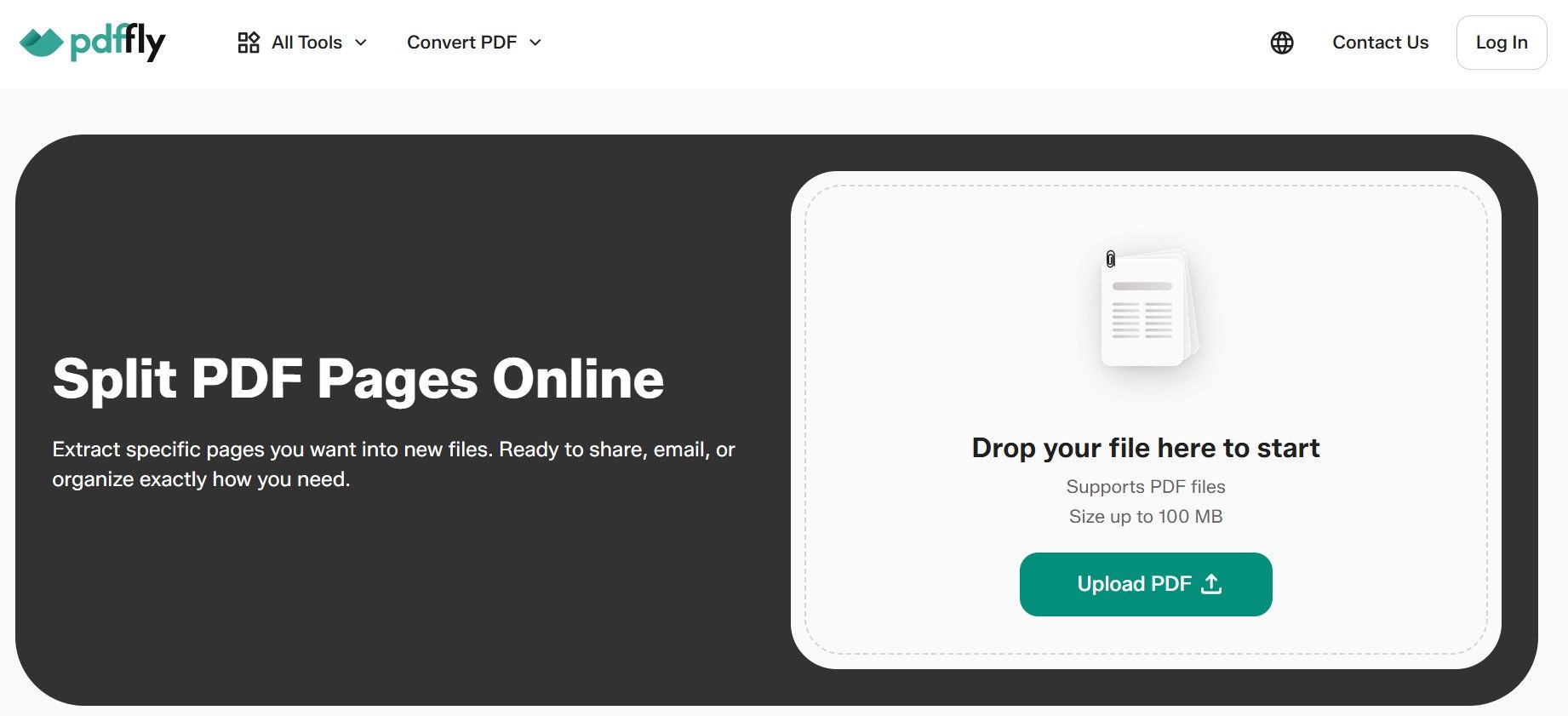
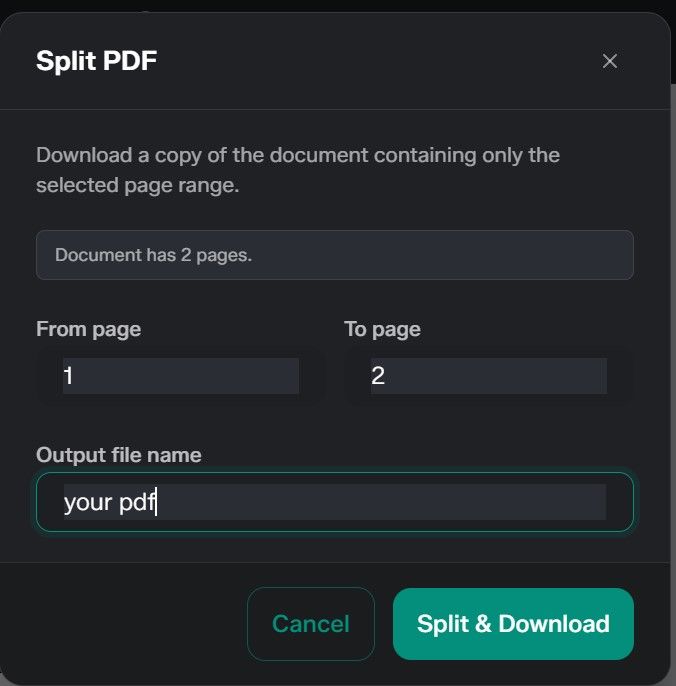
With PDFFly, split each range separately (2 to 2, 7 to 7, 15 to 18), then combine the pieces into one file with Merge PDF in the order you need. This also covers how to save part of a PDF, like one section of a manual.
A separate file for each page. Sometimes every page needs to live on its own – for example, when you file each invoice separately. To save PDF pages separately, run Split PDF once for each page and enter the same page number in both fields. This works especially well when you're sorting a batch of scanned receipts or forms.
Found a long PDF on a website? The same methods explain how to download certain pages of a PDF: download the file first, then split it, or open it in Chrome and use Print to PDF with a custom range.
What to Do After Saving Your PDF Pages
Your new file is ready, but a couple of quick steps can make it easier to share or reuse.
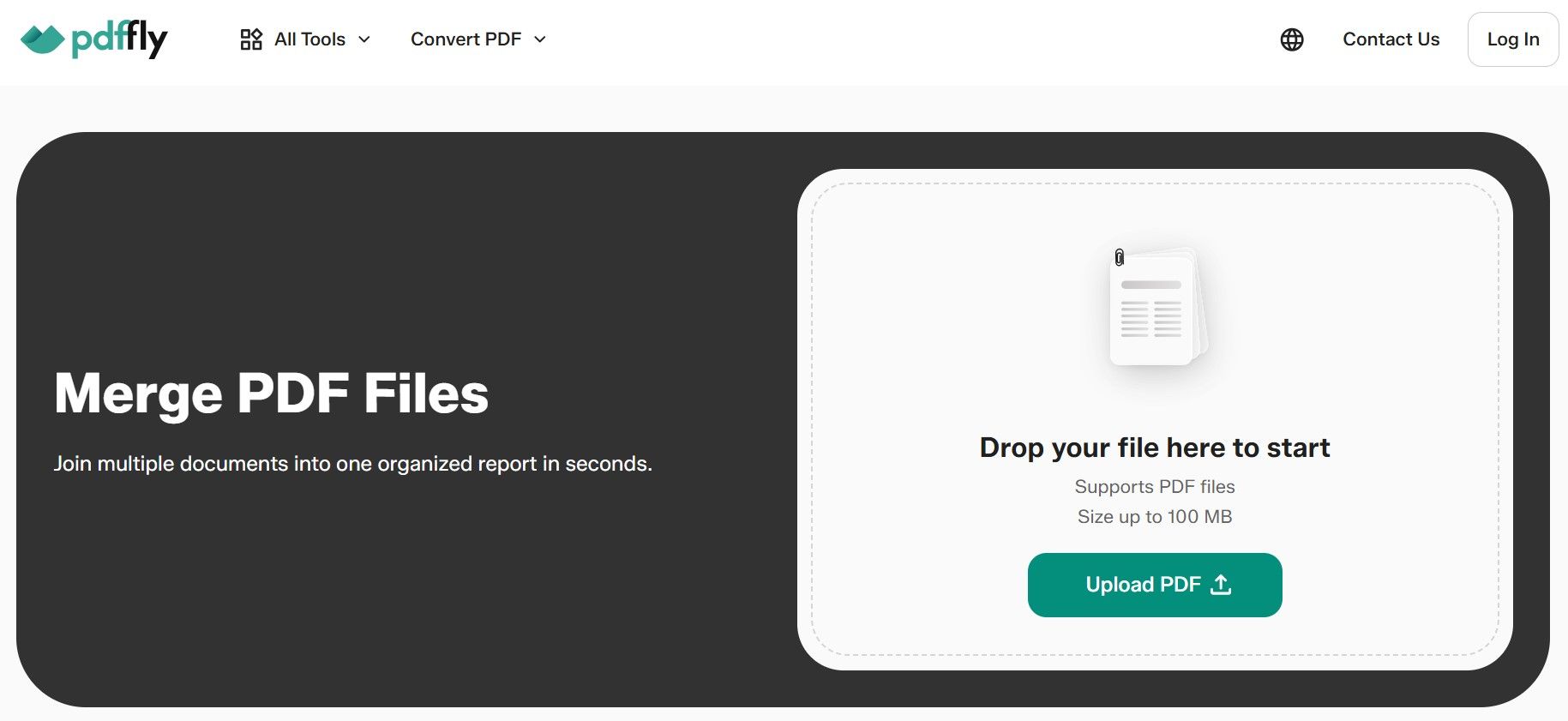
Extracted pages often need to go somewhere else, like a signed form attached to a cover letter or a few slides added to a report. Use PDFFly to merge PDF pages from several files, drag and drop them into the right order, and download one clean document. If the other document is a Word file, convert it with PDFFly's Word to PDF tool first.
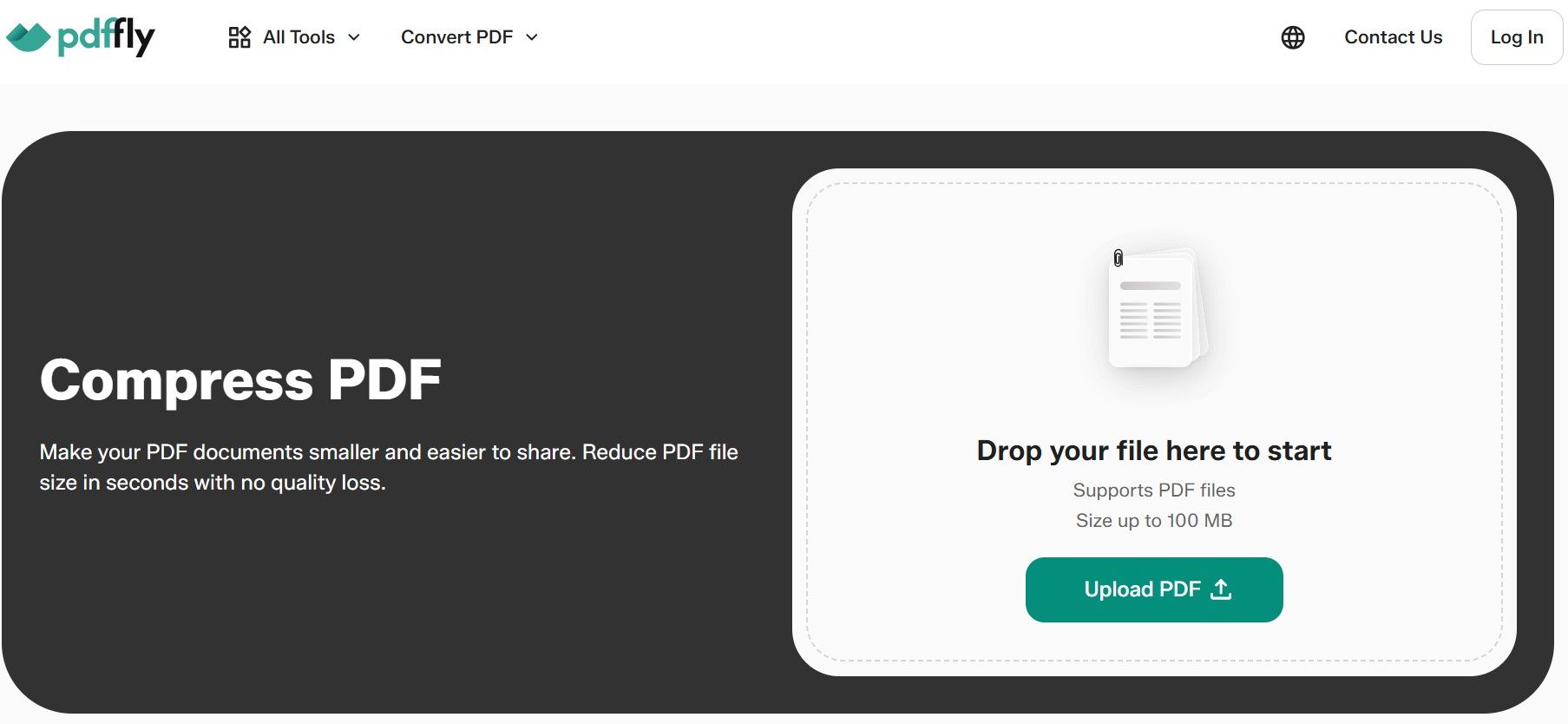
Compress the new PDF file for smaller files
Extracting pages doesn't always shrink the file size much, since a single scanned page can still weigh several megabytes. If you plan to email it, compress the extracted PDF first to bring the file size down. Gmail, for example, limits attachments to 25 MB, and smaller files load faster on phones.
Saving the right pages is often just the first step. Once you have a smaller PDF, you may need to sign it, edit it, or send it in a different format.
PDFFly handles all of that in the same browser tab. It's a free online PDF platform used by more than 6 million people, who have uploaded over 20 million files so far.
Here's how other PDFFly tools can help with your new file:
- Sign or fill out an extracted form;
- Edit the content in another format;
- Make a scanned page searchable;
- Rotate PDF pages to change their orientation;
- Work with locked PDF files.
Go to PDFFly’s website and try these tools for free. There's nothing to install, no account to create, and the interface is available in multiple languages.
Frequently Asked Questions (FAQs)
Can I save only one page of a PDF for free?
Yes. Every method in this guide is free. PDFFly's Split PDF tool doesn't require an account, and Print to PDF is built into Windows, macOS and ChromeOS, while iPhone and iPad offer native PDF export tools.
Can I split a PDF into separate one-page files?
Yes. To save individual PDF pages, use PDFFly's Split PDF tool once for each page, entering the same number in both the From page and To page fields. Each run downloads that page as its own file.
A dedicated PDF extractor can keep pages in their original quality without re-rendering them, depending on the tool. Your original file is not changed by the extraction.
It depends on the type of protection. If the PDF requires a password to open, you'll need the password. If it opens but restricts editing or other actions, an unlock tool may be able to remove those permissions, provided you have permission to modify the file. Only unlock files you own or have permission to edit.

 Published Sep 30, 2026
  4 min
4 min