Writing vs. Editing: What Is the Difference?
Before we go further, it's worth clearing up a common point of confusion. Typing on a PDF means overlaying new PDF text on top of the existing text and page content. Adding a text box works even when the document isn't directly editable, including many scanned documents and flattened PDFs. Password-protected files may require additional access before you can add annotations.
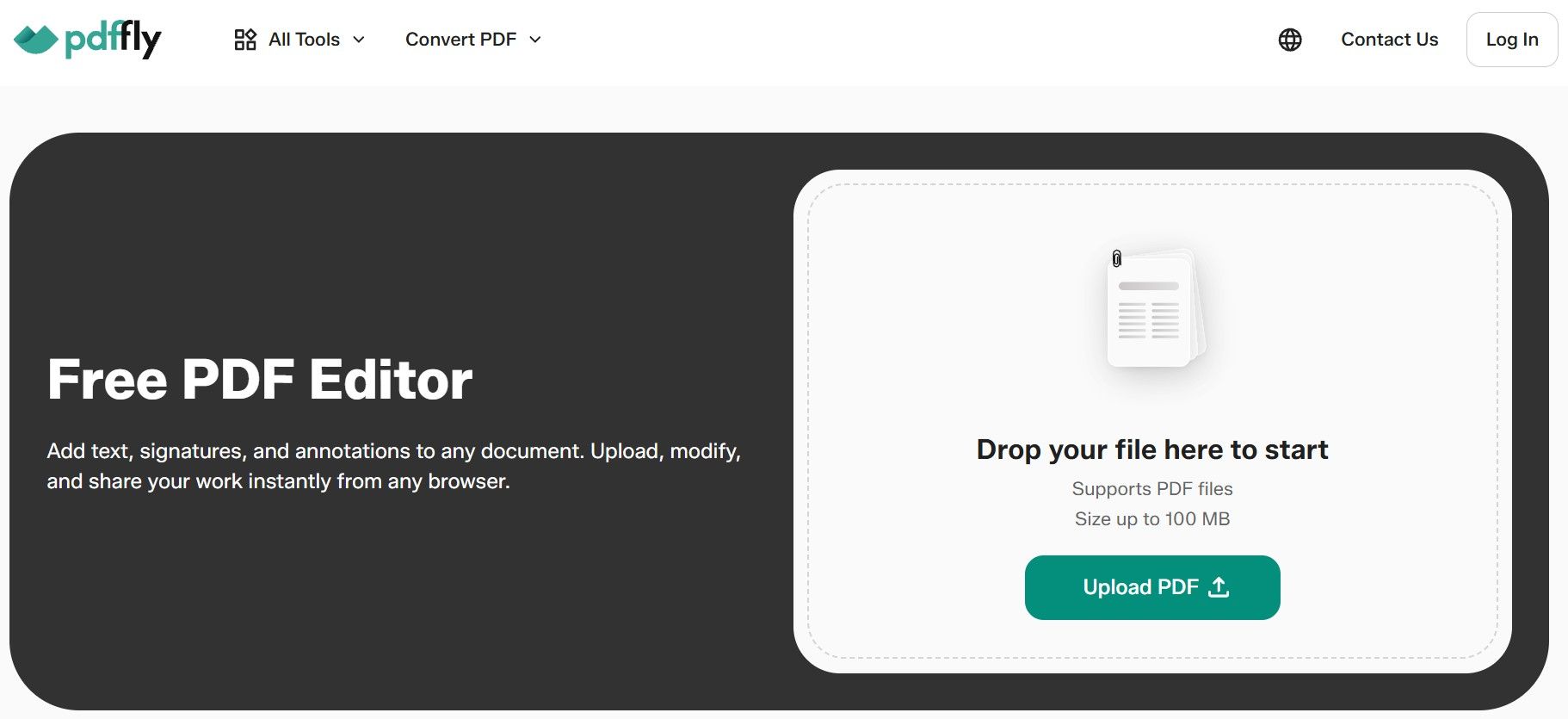
Editing a PDF, on the other hand, means changing the existing text that's already there – fix typos, reword sentences, adjust formatting. Unlike Adobe Acrobat, which requires a full desktop installation for this, PDFFly lets you edit existing text in PDF directly in the browser using advanced PDF editing tools – no download needed. For scanned documents, optical character recognition (OCR) may be needed first to make the text selectable and editable.
The table below summarizes the main ways to work with text in a PDF.
| Task |
What it means |
Works on scanned PDFs? |
| Writing / typing on a PDF |
Adding a new text layer on top of the page |
Yes |
| Editing existing text |
Changing existing characters in the document |
Yes, if optical character recognition (OCR) is used first |
| Converting to Word document |
Turning the PDF into a fully editable .docx |
Yes, with OCR for scanned files |
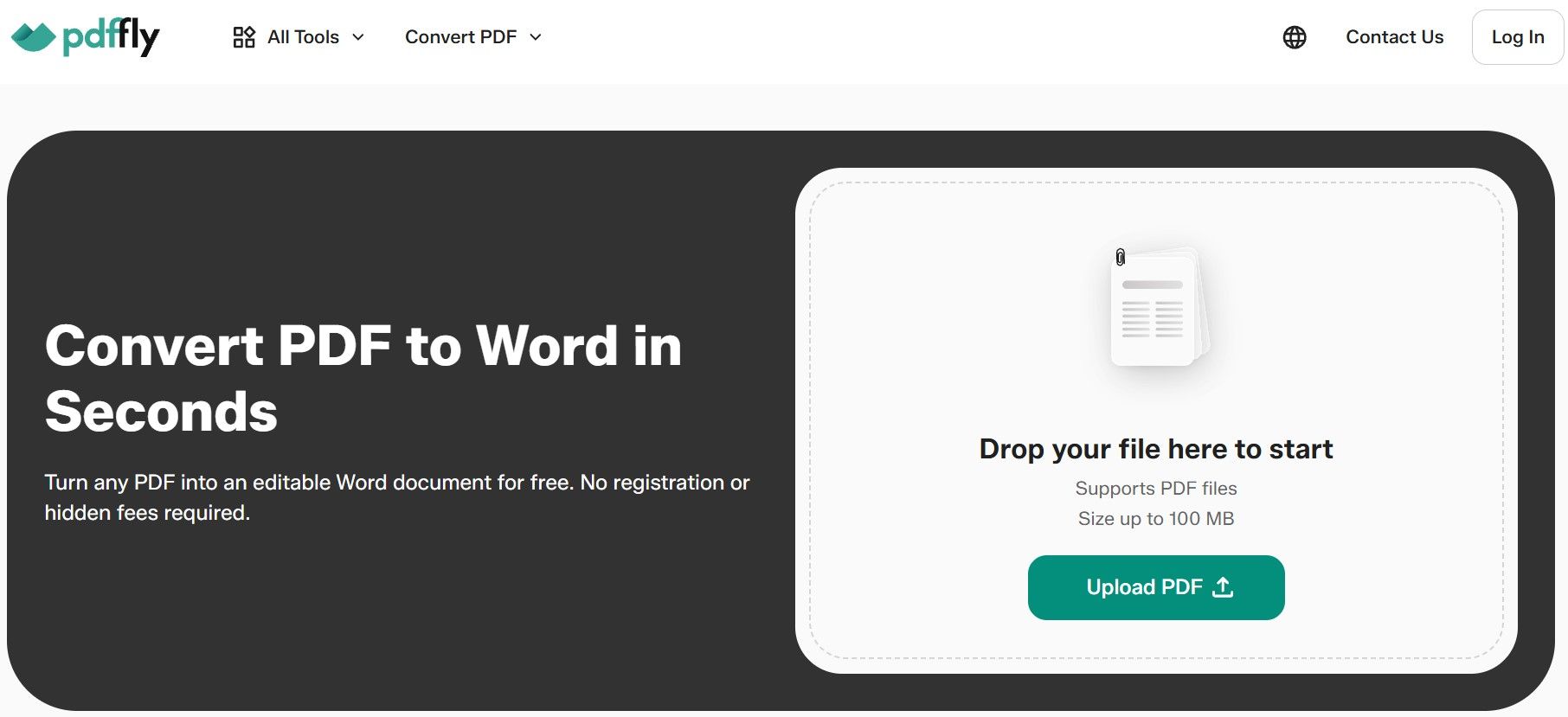
If your goal is deep revision (rewriting existing text across page numbers or restructuring the whole document), the cleanest path is to convert PDF to Word, edit the word document and export back to PDF. If the source is a scanned document, an Excel file or another file format, PDFFly can handle the conversion first – free, no conversion caps.
How to Write on a PDF on iPhone and Android
Knowing how to type on a PDF file on mobile is genuinely useful when you need to fill out a form but don't have your laptop with you. PDFFly works across all mobile devices: iOS, Android and tablets. Here are the main options for each platform.
- iPhone / iPad (iOS)
Open PDFFly in Safari or Chrome, upload your file, and use the Text tool – the mobile layout is touch-friendly and works without any app download. You can add notes, add comments and use the drawing tool to sketch or annotate. Apple's built-in Markup tools also let you add text, draw, highlight and add signatures to PDFs without installing another app.
- Android / smartphones
Open PDFFly in Chrome, upload your PDF and type text directly in your browser. The experience on mobile devices is nearly identical to desktop: the same free PDF editor in one tool, no app required.
- Tablets
On an iPad or Android tablet, PDFFly's browser editor adapts to the larger touchscreen, making it easy to place text boxes, add drawings or drop sticky notes anywhere on the page.
How can I write on a PDF document without software?
The process is the same on any device: open a browser, go to PDFFly, upload your PDF, add text, and download the updated file. PDFFly is online software, so there is no desktop app to install.
What Else Can You Add to Your PDF?
Once you're comfortable adding text, PDFFly's advanced features let you do more in the same session: PDF editing and signing all on one platform.
Many PDFs arrive as interactive forms with pre-defined fields – a job application, a tax document, an offer letter or a lesson plan. Click any fillable form field to enter your information. PDFFly can also help you create fillable forms by placing input boxes over the blank areas of a static PDF. Either way, the result is a completed, downloadable document.
Annotate and Handwrite
Need to mark up a draft? PDFFly includes highlight, underline, strikethrough and freehand draw tools – available in multiple colors so you can color-code feedback. On a touchscreen or with a stylus you can handwrite directly, producing an annotated PDF ready for easy sharing or real time collaboration.
What Else Can PDFFly Do?
Once your text is in place, PDFFly has more tools to finish the document – all in the same browser session, without switching apps:
- Insert images into PDF
Add a photo, logo or scanned signature to any page.
- Compress PDF
Reduce file size after editing, with preset output targets.
- Merge PDFs
Combine multiple PDFs into a single file.
- Remove watermark from PDF
Remove a logo or text behind document content.
Ready to write on your PDF? Try PDFFly for free – no sign-up or download required.
Frequently Asked Questions (FAQs)
Why can’t I type on my PDF?
Most standard PDF viewers don't let you edit PDFs or change the existing text. Some, such as Preview on macOS, do support annotations and form filling, but they lack the full editing tools and formatting options of a proper free PDF editor. To write on a PDF, you need a PDF editing tool, not a viewer. PDFFly's free PDF editor adds that capability without any installation.
Is it secure to type on sensitive PDFs online?
PDFFly transfers all files over HTTPS (SSL encryption) and deletes them automatically after processing. No account or personal data is required.
If you are working with an encrypted file or a protected PDF or a locked document, you may need to enter the password before you can open or edit it. For sensitive files, review your organization’s data-handling requirements before uploading a document to an online PDF tool.
PDFFly’s security measures support file security and privacy during processing, but you should still follow your organization’s document-handling policies.
Can I write on a PDF for free?
Yes. PDFFly’s free PDF tools (adding a text box to PDF, adjusting formatting, and downloading the result) are completely free, with no watermarks on exported files.
Unlike Adobe Acrobat, which requires a paid subscription for most PDF editing features, PDFFly keeps the core editing tools free.
Open the form in PDFFly's editor and click an interactive fillable form field to enter your information. The formatting options let you match the PDF text style to the rest of the document.
If the PDF doesn't contain fillable forms, use the Text tool to type your answers into the blank areas. The same approach works for scanned documents and other non-interactive PDFs.
Can I write on a PDF on my Mac without Acrobat?
Yes. On macOS you have two free options: Preview (built-in – use the Markup toolbar to add text annotations and add drawings) and PDFFly in your browser. PDFFly gives you more control over formatting (font, size and color) and supports advanced features like inserting images, without the cost of Adobe Acrobat. And it works without any app at all.

 Published Sep 30, 2026
  5 min
5 min